
How to Compress a PDF Without Losing Quality
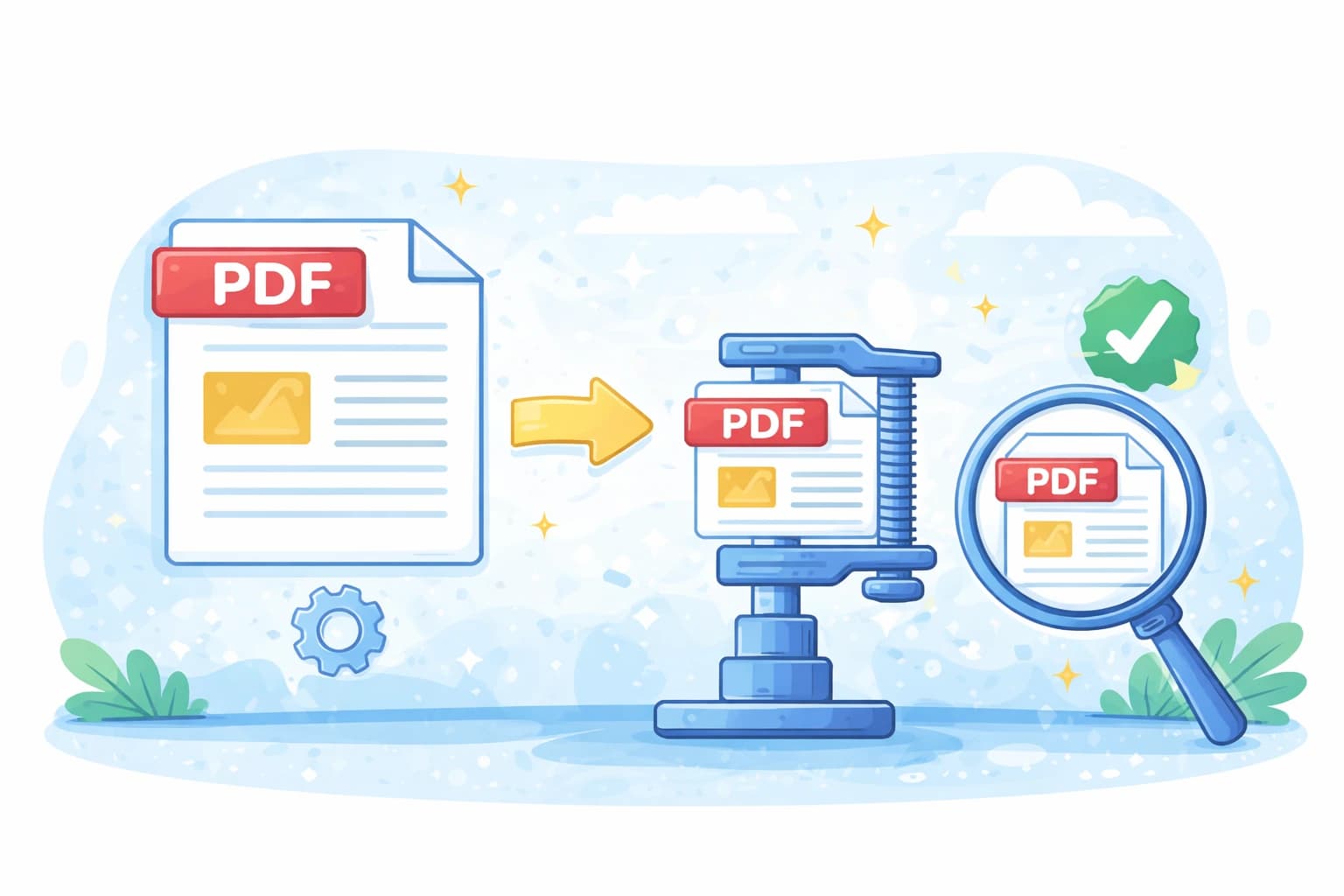
The most common concern when compressing a PDF is quality loss — blurry images, jagged text, a file that looks worse than the original. The concern is understandable, but with the right compression settings, it simply doesn't happen. You can reduce most PDFs by 50–70% while keeping text perfectly sharp and images visually indistinguishable from the source.
Here's exactly what happens during compression, how to choose the right level, and what to expect from the result.
In short
- ✔ Medium compression reduces size by 50–70% with no visible quality loss
- ✔ Text is always stored as vector data — it stays sharp regardless of compression
- ✔ Images are slightly downsampled, but the difference is invisible at normal viewing size
- ✔ Free, no registration, works on any device
What actually happens when you compress a PDF?
PDF compression works differently on text and images. Understanding this distinction is key to knowing which compression level to choose.
Text in a PDF is stored as vector data — mathematical descriptions of shapes and curves, not pixels. Compression does not affect vector content at all. Your text will be perfectly crisp at any compression level, whether you zoom in to 50% or 500%. This is true for body text, headings, tables, and any text-based content.
Images are where compression has an effect. Photos, charts, scanned pages, and graphics embedded in the PDF are downsampled — their resolution is reduced from, say, 300 DPI to 150 or 120 DPI. At normal viewing size on screen or in print, this difference is imperceptible. A photo that was 3000×4000 pixels is now 1500×2000 pixels, but displayed at the same size on a monitor, it looks identical.
Metadata and embedded resources — color profiles, revision history, embedded fonts — are also stripped or optimized. This doesn't affect appearance at all but can shave several megabytes off documents that carry a lot of hidden overhead.
Which compression level should you choose?
Low compression — maximum quality
Minimal image downsampling. Best for documents with charts, diagrams, or medical/legal images where detail matters. Typical size reduction: 15–30%. Choose this when the recipient needs to print the document at high quality or zoom in to inspect image details.
Medium compression — recommended for most use cases
Images are downsampled to screen-optimal resolution. The visual result is indistinguishable from the original for contracts, reports, presentations, and everyday documents. Typical size reduction: 50–65%. This is the right choice in almost every situation.
High compression — smallest file size
Aggressive downsampling. Photos may show slight softness if zoomed in closely. Best for documents that must fit under a very tight size limit and where images are secondary to text content. Typical size reduction: 65–80%.
When does compression actually affect quality?
There are specific scenarios where compression can produce a noticeable difference, and it helps to know them in advance.
Scanned documents with fine print can lose legibility at high compression if the original scan was already low resolution (under 150 DPI). If your scanned document has small text or detailed signatures, use low or medium compression.
Photographs in a portfolio or photo book PDF are best compressed at low compression if the visual quality of the images is the whole point of the document.
Documents that have already been compressed won't compress much further without noticeable degradation. If your PDF was already optimized when exported, running it through a compressor again will either have little effect or visibly degrade the images. In this case, consider whether splitting the document or removing unnecessary pages would achieve the size reduction you need.
Quick test: compress your PDF at medium level, open it side by side with the original, and zoom in to 100%. In almost every case, you won't be able to tell the difference. If you can, switch to low compression and the quality will be identical.
Frequently asked questions
Will my text look blurry after compression?
No, never. Text in a PDF is stored as vector data, which is unaffected by compression. It will be perfectly sharp at any zoom level, regardless of which compression level you choose.
What compression level is best for a scanned document?
Medium, in most cases. Scanned documents are mostly images, so they compress well. If the original scan is high resolution and the document contains fine print or small signatures, use low compression to preserve maximum legibility.
What compression level should I use for a contract?
Medium. Legal documents are mostly text, and text is never affected by compression. If the contract contains embedded signature images or stamps, medium compression will preserve them well enough for any official purpose.
Can I compress a PDF multiple times?
You can, but the gains diminish each time. Once the images in a PDF have been downsampled, running it through compression again will have little effect on size — and may degrade image quality further without significant benefit. Compress once at the right level rather than repeatedly.
Compress PDF without losing quality
Free, instant, no registration. Choose your compression level and download.
Compress PDF — free