
How to Convert iPhone HEIC Photos to JPG
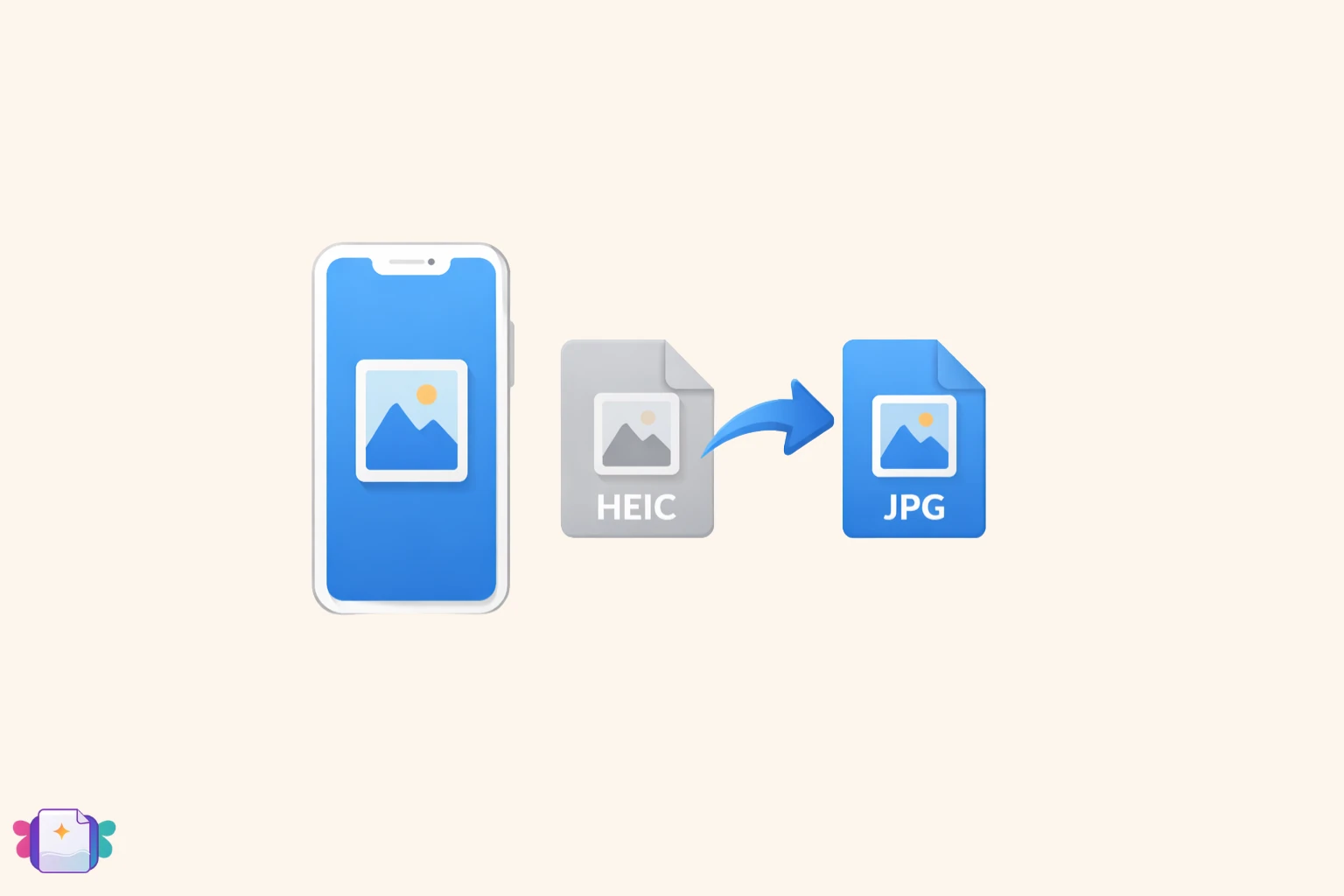
If you have an iPhone or iPad running iOS 11 or later, your photos are almost certainly saved in HEIC format. Apple adopted HEIC because it's genuinely clever technology — it stores photos at the same visual quality as JPEG but at roughly half the file size, which means more photos fit on your device without sacrificing quality. The problem is that this efficiency comes at a cost: HEIC isn't universally supported.
Windows computers older than Windows 10 can't open HEIC without a paid codec. Many websites still don't accept HEIC uploads. Android phones can't open them by default. Even some desktop apps on Mac handle HEIC inconsistently. The result: you try to share a photo and the person on the other end gets an error or a blank file. Converting to JPG solves the problem immediately, and with the right tool it takes about ten seconds.
In short
- ✔ Convert HEIC to JPG online, free, no app needed
- ✔ Preserves full photo quality during conversion
- ✔ Also converts to PNG, WEBP and other formats
- ✔ Works directly from iPhone or Android browser
What is HEIC and why does Apple use it?
HEIC stands for High Efficiency Image Container. It's a format developed by the MPEG group and built on the HEVC video codec — the same compression technology used for 4K streaming. Apple adopted it starting with iOS 11 in 2017 precisely because of its superior compression: a HEIC photo typically takes up about 2 MB where the equivalent JPEG would take 4 MB, with no visible difference in quality.
Beyond file size, HEIC supports features that JPEG can't handle natively: Live Photos (the short clip your iPhone captures around each shot), depth maps used for portrait mode, HDR metadata, and even sequences of multiple images in a single file. It's a technically superior format — it's just not yet supported everywhere, which is why the conversion problem exists in the first place.
How to convert HEIC to JPG online
The simplest method is to use a browser-based converter — no software to install, no account to create, and it works from any device including the iPhone itself.
Open the converter — go to the HEIC to JPG converter or the universal image converter if you need a different output format.
Upload your photo — drag the HEIC file onto the page or tap to select it from your device. The format is detected automatically, and no manual settings are required.
Download the JPG — conversion takes a few seconds. The downloaded file is a standard JPEG that opens on any device, in any app, and can be uploaded to any platform without issues.
Tip: if you need to convert several HEIC photos at once, look for a converter that supports batch upload. Converting files one by one gets tedious quickly when you have a full camera roll to deal with.
Should you convert to JPG or PNG?
For most use cases, JPG is the right choice. It's the universal standard for photographs — compatible with every device, every app, and every website. JPG uses lossy compression, which means some data is discarded during conversion, but the result is visually identical to the original when you keep quality settings high. The file size is also significantly smaller than PNG for the same photo.
PNG is a better choice only in specific situations: if the image contains a transparent background (like a logo or product cutout), or if it has sharp edges and flat colors (like a screenshot or diagram) where JPG compression would create visible artifacts. For standard iPhone photos, there's no meaningful advantage to PNG over JPG — and PNG files will be noticeably larger.
How to stop iPhone saving photos in HEIC
If you prefer your iPhone to save photos in JPEG from the start — so you never need to convert — you can change this in the camera settings. Go to Settings → Camera → Formats and switch from “High Efficiency” to “Most Compatible”. Your camera will then save photos as standard JPEG files.
The trade-off is storage space: JPEG photos are roughly twice the size of HEIC at the same quality. On a 64 GB device that fills up quickly, HEIC is genuinely worth it. On a 256 GB or 512 GB device, you probably won't notice the difference. There's no right or wrong answer — it depends on your storage situation and how often you share photos with non-Apple devices.
Frequently asked questions
Does converting HEIC to JPG reduce photo quality?
Only marginally, and not visibly in normal use. JPG uses lossy compression, which means some image data is technically discarded during conversion. However, if the quality setting is kept at high or maximum, the resulting photo is visually identical to the original. For sharing, posting online or printing at standard sizes, there is no practical difference.
Can I convert HEIC to JPG on iPhone without an app?
Yes. Browser-based converters like CandyFile work directly in Safari on iPhone — you don't need to download anything from the App Store. Open the page, select the photo from your photo library, and download the converted JPG to your device.
Why can't Windows open my HEIC files?
Older versions of Windows and Windows 10 without the HEVC Video Extensions installed can't open HEIC files natively. Microsoft offers a paid codec in the Windows Store, but converting to JPG is free and immediately solves the compatibility problem without any software purchases.
What happens to Live Photos when I convert HEIC to JPG?
The static photo is preserved in the JPG file, but the motion component (the short video clip) is not. JPG is a single-image format and can't contain video data. If you need to share the motion of a Live Photo, export it as a video or GIF instead.
Convert your HEIC photos now
Free, online, without installing apps. Also supports PNG, WEBP and other formats.
Convert HEIC to JPG