
How to Convert PDF to Word Without Losing Formatting
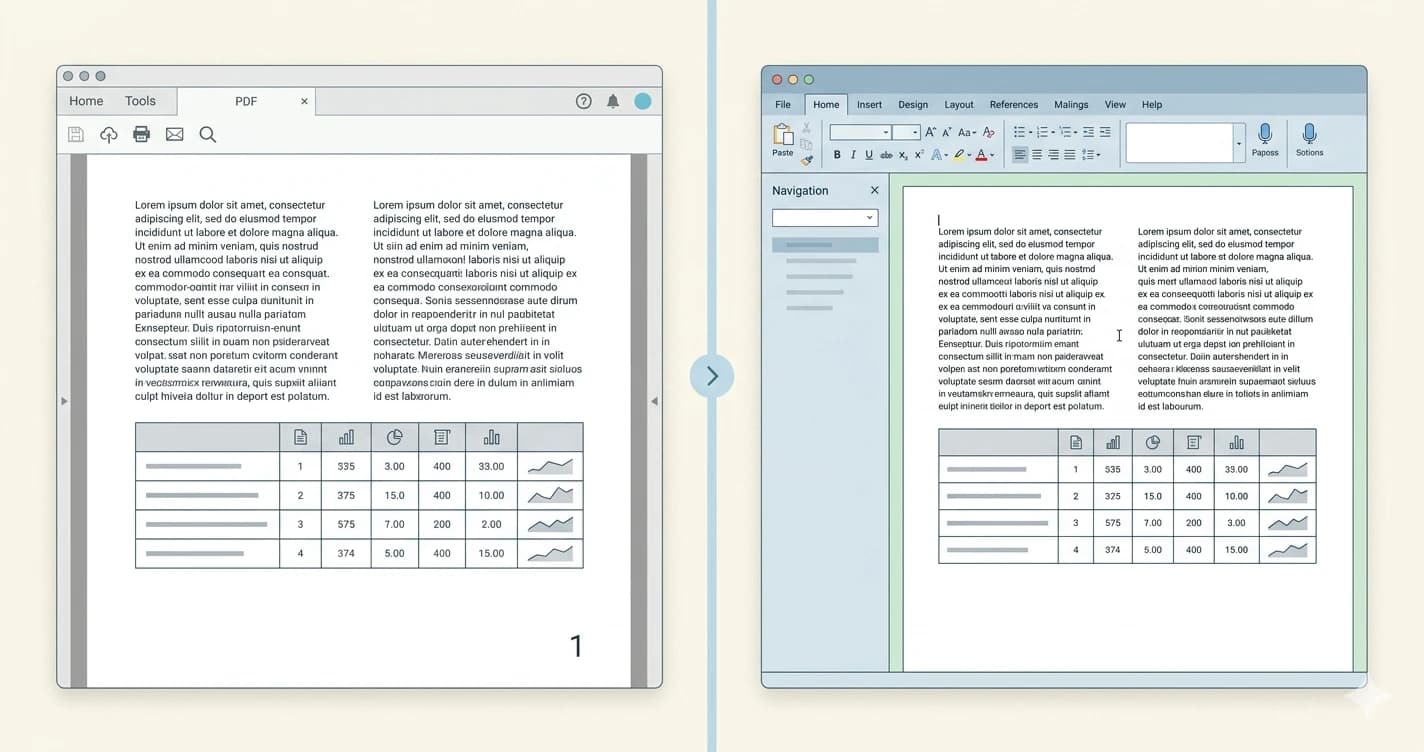
You convert a PDF to Word and get back a document where the fonts are wrong, the tables have collapsed, and the columns have turned into a single unreadable block of text. This is the most common frustration with PDF-to-Word conversion — and it happens because of a fundamental difference in how the two formats store content.
The good news is that with the right converter and a basic understanding of what causes formatting issues, you can convert PDF to Word without losing formatting in most cases — and fix the remaining issues in minutes when they do appear.
In short
- ✔ Preserves fonts, paragraphs and headings in most PDFs
- ✔ Reconstructs tables and multi-column layouts
- ✔ Works on text-based PDFs — not scanned images
- ✔ Free, online, no software needed
Why formatting gets lost when converting PDF to Word
PDFs and Word documents store content in fundamentally different ways. A PDF is essentially a fixed canvas — text, images and shapes are placed at exact x/y coordinates on each page. There are no paragraphs, no styles, no heading hierarchy in the traditional sense. The file just says “put this text at this position, in this font, at this size.”
Word documents work the opposite way. Content flows dynamically — if you change the font size or margin, the entire document reflows automatically. Word uses styles, paragraph formatting and table structures that have no direct equivalent in a PDF.
When a converter translates a PDF to Word, it has to infer the original structure from the positions and sizes of elements on the page. This interpretation is where formatting issues occur — a two-column layout might be read as a single column, a table might be treated as individual floating text boxes, or custom fonts might be substituted.
How to convert PDF to Word without losing formatting
For text-based PDFs — documents that were originally created digitally, not scanned — the conversion quality is high. Here's how to do it:
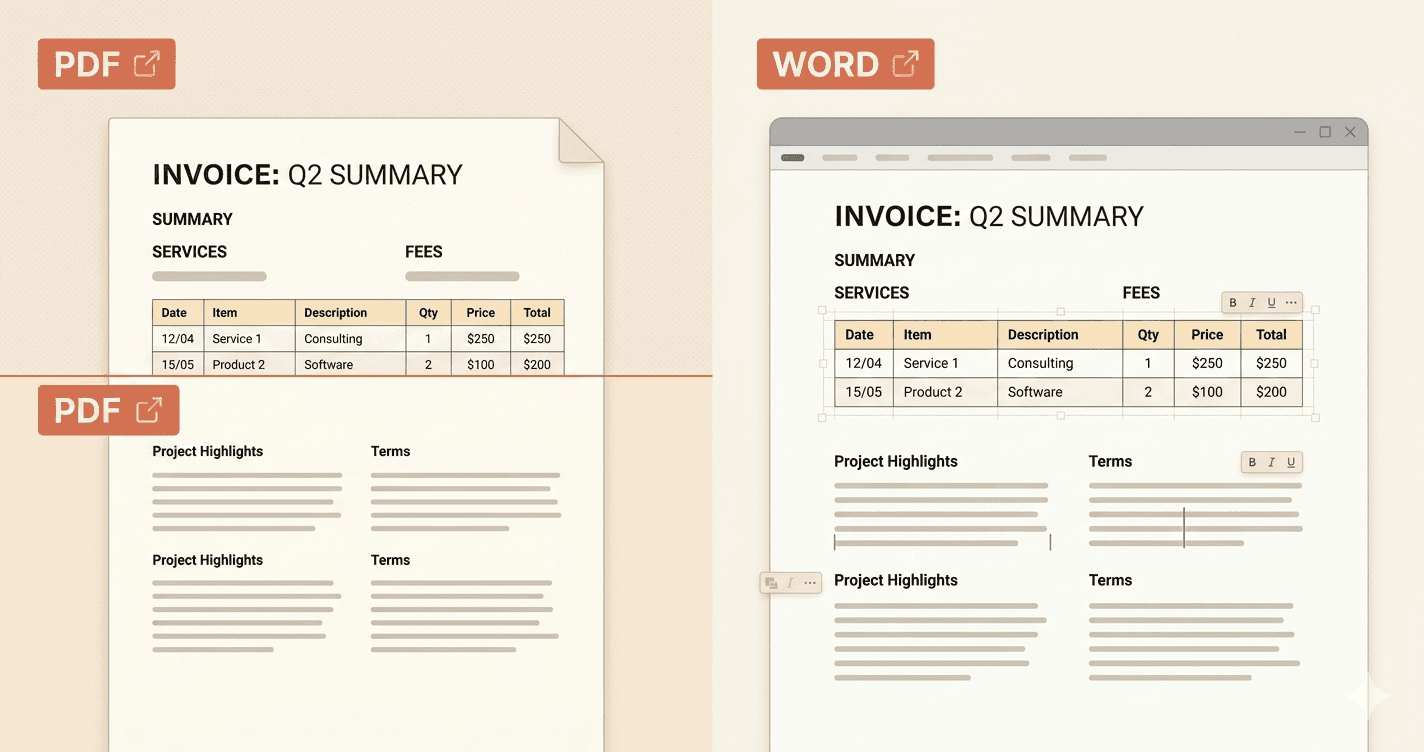
Open the converter — go to the PDF to Word converter. No account or software needed.
Upload your PDF — drag the file onto the upload area or click to select it. The converter processes the document structure, not just the raw text.
Download the DOCX — the result is a fully editable Word document with headings, paragraphs, tables and layout reconstructed as closely as possible to the original.
Important: if your PDF was created by scanning a physical document, it's an image — not text. Standard converters cannot extract formatting from scanned PDFs. You need a tool with OCR to reconstruct the text before conversion.
Which PDFs convert best — and which don't
Not all PDFs are equal when it comes to formatting preservation. The results depend heavily on how the original PDF was created.
Simple text documents
Reports, letters, contracts with single-column text and standard fonts. These convert almost perfectly — headings, paragraphs and bold/italic text are preserved reliably.
Documents with tables
Tables usually convert correctly in structure, but cell widths and borders may need minor adjustments after conversion. Review them carefully before using the document.
Multi-column layouts
Newsletters, academic papers and magazines with two or three columns are the most challenging. The converter may merge columns or reorder content. Manual correction is often needed.
Scanned PDFs
These are images, not text. Without OCR, the converter outputs a Word document with embedded images instead of editable text. Formatting is not preserved.
How to fix formatting issues after conversion
Even with a good converter, some cleanup is normal for complex documents. Here's how to address the most common issues:
- Wrong font substituted — the original font wasn't embedded in the PDF. Select all text (Ctrl+A) and apply your preferred font consistently.
- Extra spaces or line breaks — use Find & Replace (Ctrl+H) to find double spaces or paragraph marks and clean them up.
- Table cells merged or misaligned — click inside the table, use the Table Design tab to restore borders, and manually adjust column widths as needed.
- Images out of position — set image wrapping to “In line with text” to make them behave predictably within the document flow.
Frequently asked questions
Why does formatting get lost when converting PDF to Word?
PDFs store content at fixed positions on a page, while Word uses a flow-based layout with styles and structure. The converter has to infer the original structure from the PDF layout, and complex elements like multi-column text, custom fonts and tables are the most difficult to reconstruct accurately.
Can I convert a scanned PDF to Word with formatting?
Not with standard conversion. Scanned PDFs are images, so a standard converter cannot extract text or structure from them. You need OCR software to first recognize the text, then reconstruct the formatting. Results vary depending on scan quality.
How do I preserve tables when converting PDF to Word?
Use a converter that reconstructs table structure. After conversion, review each table carefully — borders and column widths often need minor manual adjustments. This is usually faster than rebuilding the table from scratch.
Is it possible to convert a PDF to Word perfectly?
For simple, text-based PDFs with standard fonts, the conversion is usually very close to perfect. For complex documents with unusual fonts, multi-column layouts or embedded graphics, some manual cleanup is almost always needed. The more complex the original PDF, the more work the cleanup requires.
Convert your PDF to Word now
Free, online, no software needed. Fonts, tables and layout preserved.
Convert PDF to Word