
How to Make a PDF Smaller — 5 Methods That Actually Work
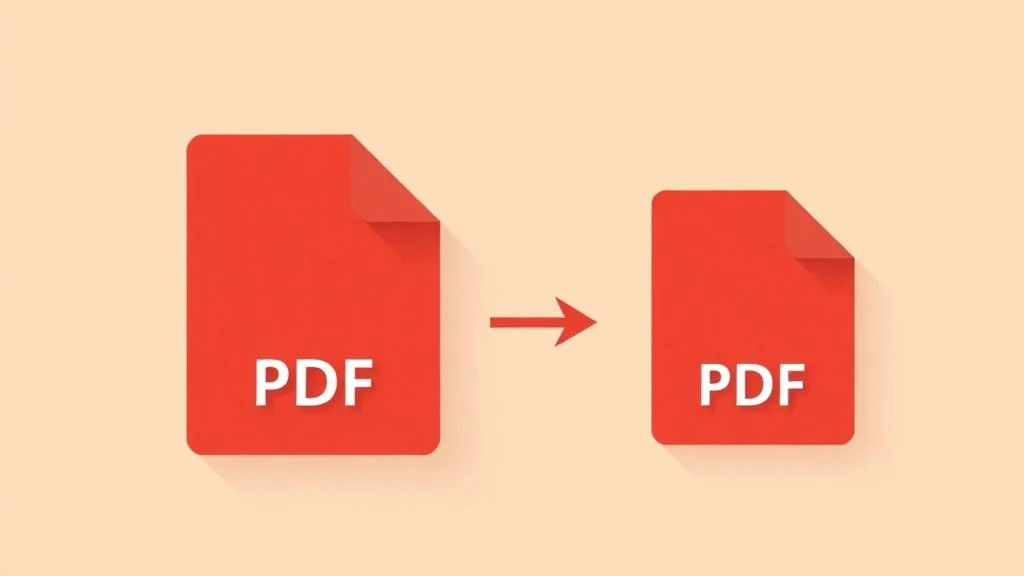
You finished the document, exported it as a PDF, and then realized it's 45 MB. Your email client won't send it, your client can't download it on mobile, and the upload form on the other end has a 10 MB cap. Sound familiar?
The good news is that there are several ways to bring that file size down — fast, free, and without touching the actual content. The right method depends on what's making the PDF heavy in the first place. This guide covers five approaches, each suited to a different situation.
Quick summary
- ✔ Compress the PDF to reduce image weight (up to 70% smaller)
- ✔ Delete pages you don't actually need
- ✔ Split it and send only the relevant part
- ✔ Extract specific pages into a new, lighter file
- ✔ Convert to JPG if the recipient only needs to read it
Method 1 — Compress the PDF
This is the go-to method for most cases, and it works remarkably well. Compression reduces the size of embedded images — which are almost always the main culprit behind a heavy PDF — while leaving text, links and layout completely untouched.
A 30 MB PDF full of photos typically comes down to 8–10 MB after medium compression. Text stays razor-sharp because it's stored as vector data, not pixels. At medium compression, images are visually identical to the original when viewed at normal zoom. High compression is available if you need to squeeze under a tight size cap and don't mind a slight loss in image sharpness.
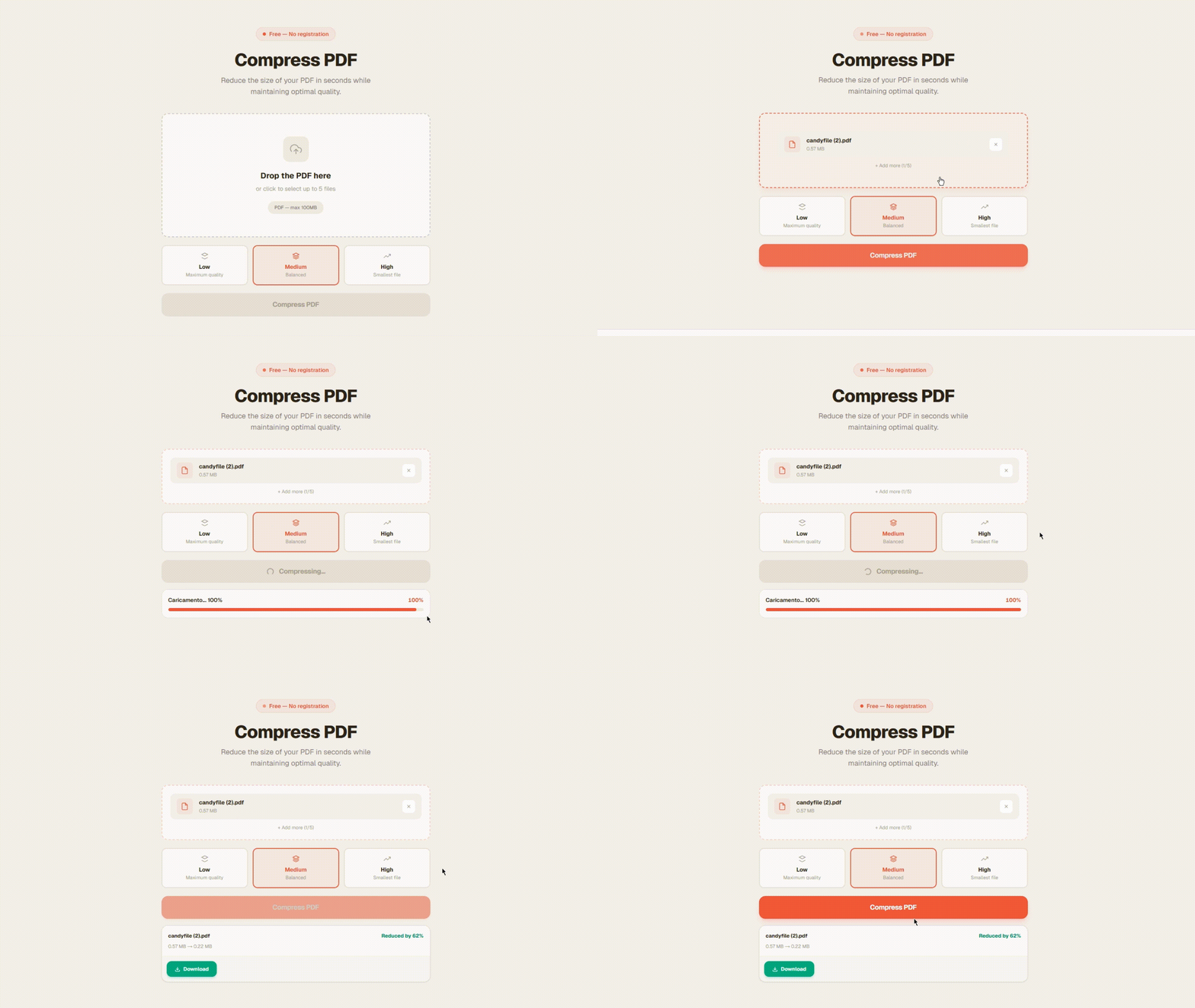
Open the PDF compressor and drag your file in — no registration, no size limit.
Pick your compression level. Medium works for 95% of documents — invoices, contracts, presentations, scanned pages.
Download the result in seconds. The file is processed and deleted from the server automatically.
Method 2 — Delete the pages you don't need
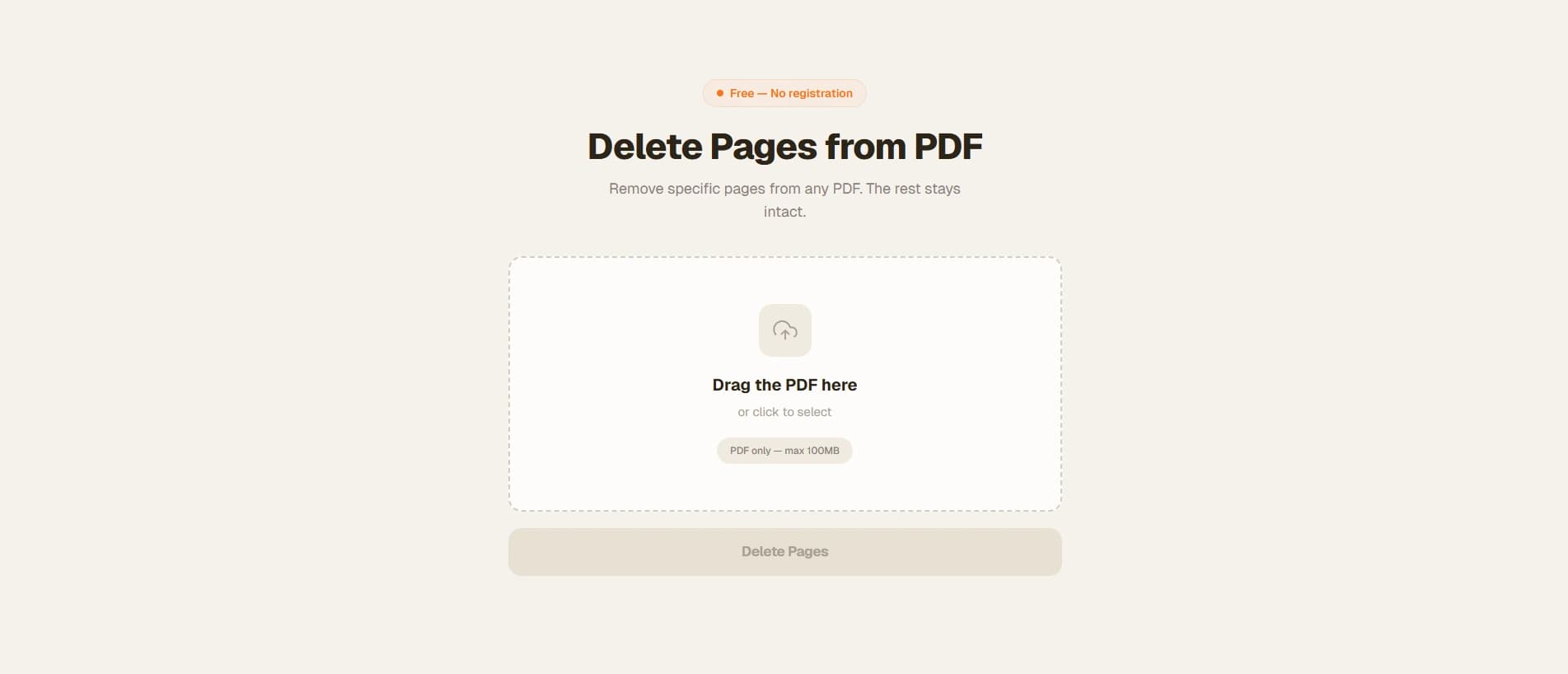
Sometimes the fastest way to shrink a PDF is the most obvious: remove what shouldn't be there. Appendices, blank pages, backup copies of a slide, cover pages with large images — each one adds weight. A 40-page PDF where only 15 pages are relevant can drop in size dramatically just by cutting the rest.
This is especially useful for PDFs exported from PowerPoint or Word, which sometimes include extra slides, hidden pages or draft versions that got carried over during export.
Method 3 — Extract only the pages you need
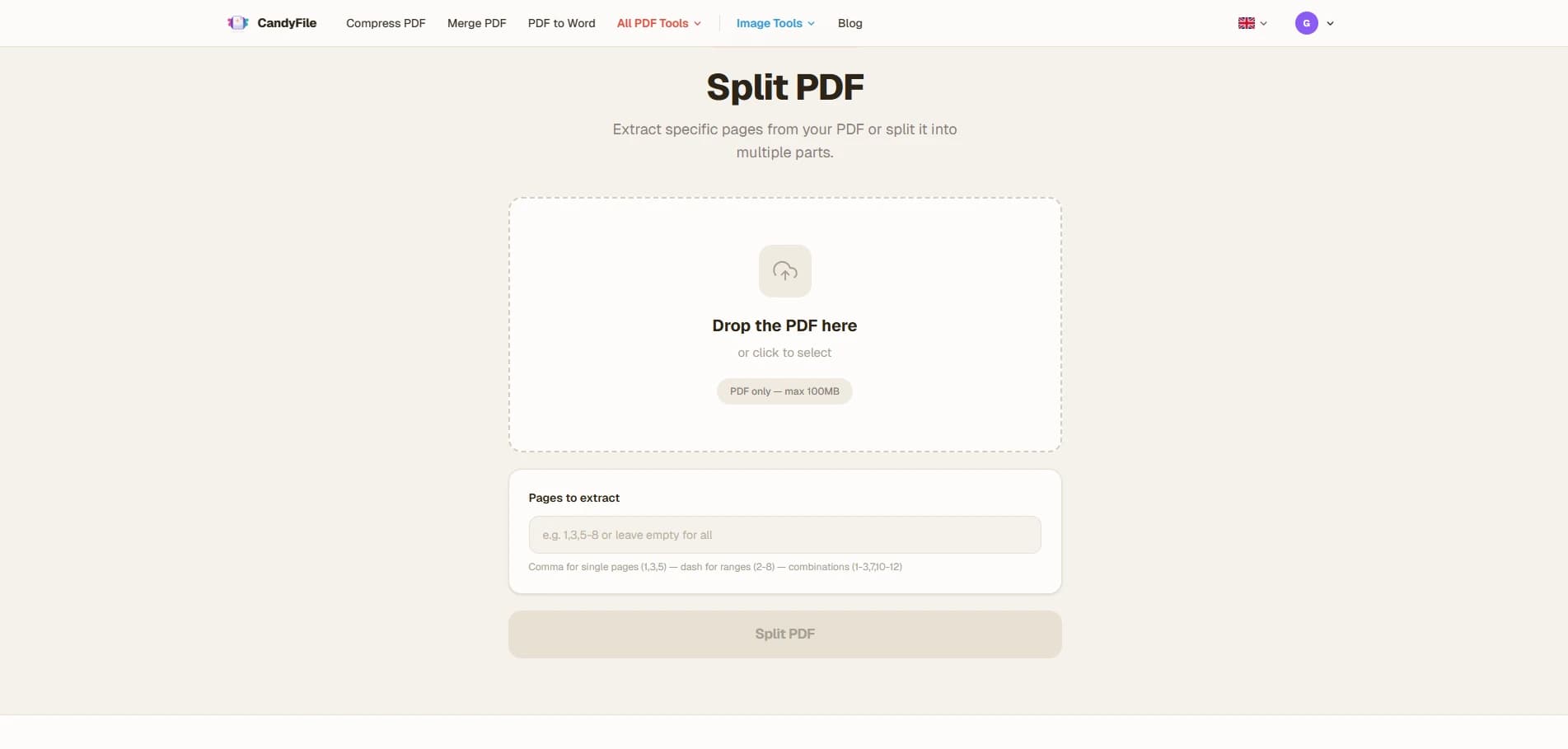
Rather than deleting pages from the original, you can extract a specific range of pages into a brand new PDF. The result is a clean, lightweight file containing only what you want to share, with no risk of accidentally editing the source document.
Think of a 60-page annual report where you only need to send chapters 2 and 3. Instead of compressing the whole thing, extract pages 8–22 into a standalone file. The recipient gets exactly what they need, at a fraction of the size.
Method 4 — Split the PDF into smaller parts
If the document needs to go out in full but is too large to send as one attachment, splitting it is the cleanest solution. You end up with two or three smaller files, each well under the email limit, and the recipient can open them all and read them in order.
Most people are happy to receive two 8 MB emails instead of getting a bounce error. Split the PDF at a logical break — end of a chapter, end of a section — so each part reads as a complete unit.
Method 5 — Convert to JPG (when reading is all that matters)
If the recipient just needs to read or view the content — not edit it, not fill a form, not click links — converting the PDF to JPG images is one of the most aggressive ways to reduce weight. Each page becomes a flat image file, and JPG compression handles visual content very efficiently.
This works best for things like scanned documents, visual portfolios, product catalogues, and infographics. It's not the right choice for text-heavy documents where the recipient might need to copy text or search within the file.
Which method should you choose?
Here's a simple way to decide based on your situation:
PDF has lots of photos or scanned pages
PDF has appendices, blank pages or sections the recipient doesn't need
You only need to share a specific chapter or section
The document is too big but needs to arrive complete
Recipient just needs to view it, not edit it
Pro tip: for maximum results, combine methods. Delete the pages you don't need, then compress what's left. A file that was 50 MB can realistically drop to under 5 MB with both steps applied.
Frequently asked questions
Why is my PDF so large?
The most common reasons are high-resolution embedded images, scanned pages stored as photographs, and leftover metadata or embedded fonts. PDFs exported from PowerPoint are particularly prone to this because each slide image is often saved at full resolution. Compression targets images specifically and can cut their weight by 60–70% without any visible difference.
Will compressing a PDF damage the content?
No. Text in a PDF is stored as vector data — it's never affected by compression and stays perfectly sharp at any zoom level. Images are reduced in resolution slightly, but at medium compression the difference is invisible in normal use. The file opens and reads identically to the original.
What is the maximum email attachment size?
Gmail and Outlook both cap attachments at 25 MB. Yahoo Mail is the same. Corporate mail servers are often stricter — sometimes as low as 10 MB. If you're not sure about the recipient's setup, aim for under 10 MB to be safe.
Can I reduce the size of a PDF on my phone?
Yes — all the tools on CandyFile work directly in your mobile browser. Upload the file from your phone, process it, and download the result. No app to install, no account required. The process takes under a minute on a standard connection.
How much smaller will my PDF get?
It depends on the content. Image-heavy and scanned PDFs often shrink by 50–70%. Text-only documents compress less — typically 15–30% — because there are fewer pixels to reduce. If you combine compression with page deletion, results can be even more dramatic.
Ready to shrink your PDF?
Free, online, no registration. Works on any device.