
How to Convert JPG to PDF for Free
Converting a JPG image to PDF is one of the most common file tasks — whether you need to send a photo as a formal document, combine several images into a single file, or prepare visuals for a submission. The process takes seconds and requires no software installation. All you need is a browser.
In short
- ✔ Convert one or multiple JPG files into a single PDF
- ✔ Free, no registration, no app to install
- ✔ Works on desktop, iPhone and Android
- ✔ Original image resolution fully preserved
Why convert JPG to PDF?
Images sent as raw JPG files can be awkward to share professionally. They open in photo viewers, don't maintain fixed page dimensions, and can't be easily combined into a single file for review or submission.
PDF solves all of this. A PDF behaves like a document: it has fixed dimensions, opens consistently on every device and operating system, and preserves image quality exactly as-is. When you need to submit a photo for a form, send several images as a single attachment, or archive visual content in a portable format, converting to PDF is the right move.
- —Submitting a photo ID, utility bill, or signed document
- —Combining multiple product photos into a single catalog page
- —Sending receipts or handwritten notes by email
- —Preparing images for a formal application or portfolio
How to convert JPG to PDF in 3 steps
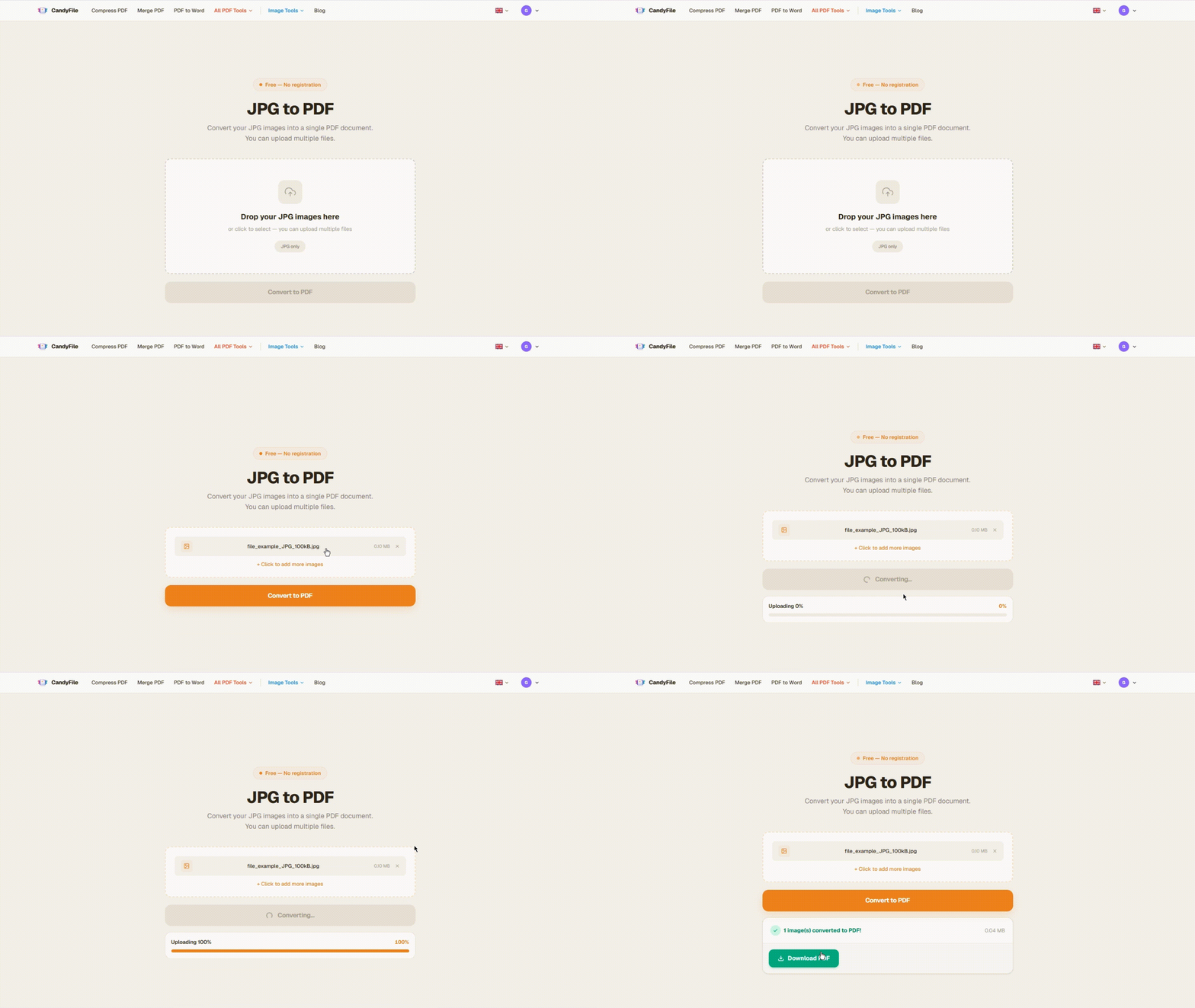
No account, no software — just open the tool in your browser and follow these steps.
Upload your JPG images
Open the JPG to PDF converter and drag your images onto the page, or click to select them. You can upload one image or many — they are all combined into a single PDF in the order they were uploaded.
Click Convert to PDF
Once your images are uploaded, click the convert button. The tool processes everything in a few seconds. Large images and batches of files are handled without issues.
Download your PDF
When conversion is complete, a download button appears. Click it to save your PDF. The file contains all your images at their original resolution, one per page, ready to share or submit.
Can I convert multiple JPG files at once?
Yes. The tool accepts multiple images in a single upload. They are placed into the PDF in the same order they were added — so if sequence matters, upload them in the correct order from the start.
Three photos become a three-page PDF. Twenty photos become a twenty-page PDF. There is no limit on the number of images you can combine.
Does it work on iPhone and Android?
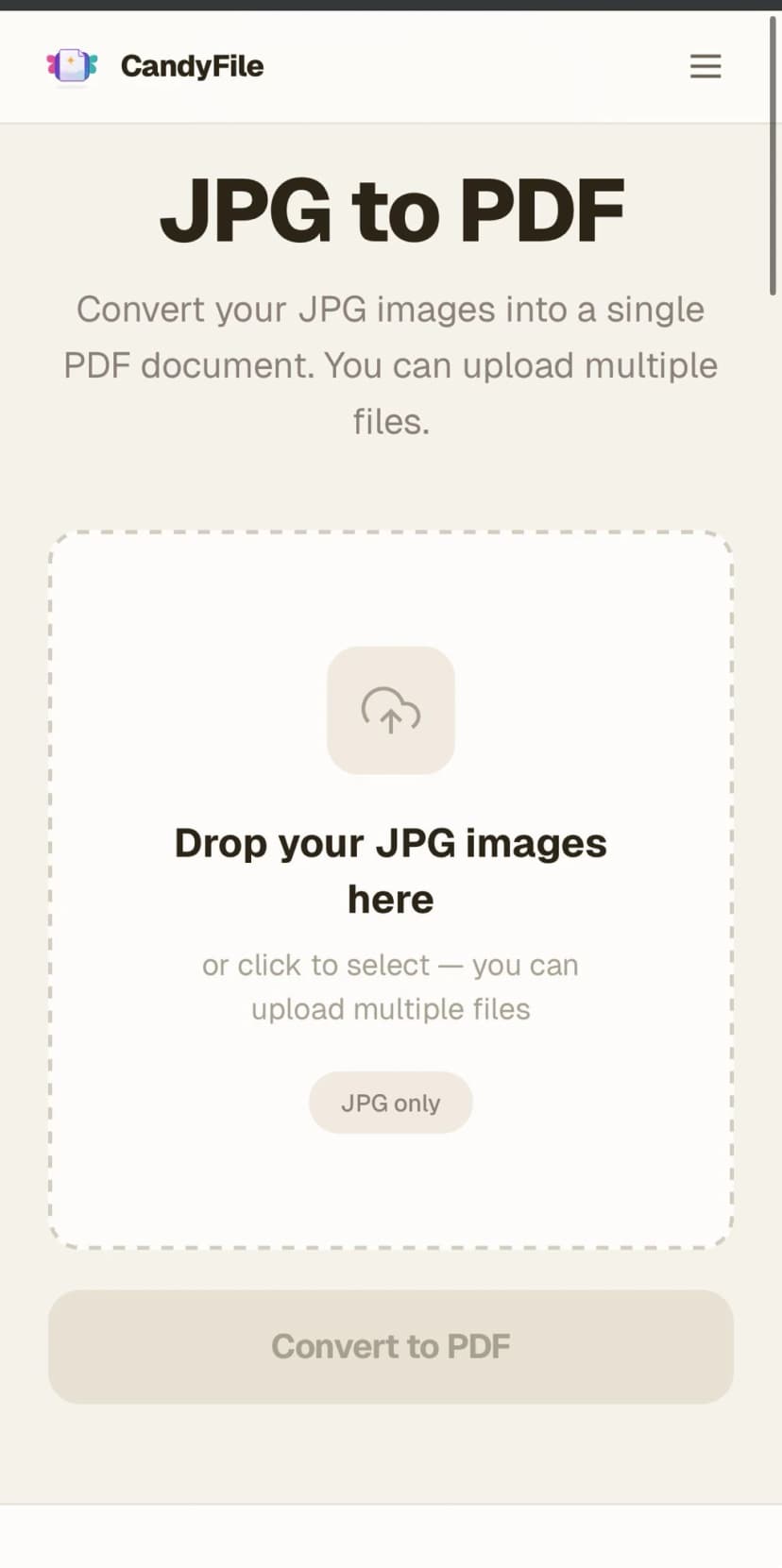
Yes. The tool runs entirely in the browser, so it works on any device — iPhone, iPad, and Android phones included. No app to download, no account to create.
On mobile: open the tool in Safari or Chrome, tap the upload area, and select images from your camera roll or files app. The PDF downloads directly to your phone's storage.
Is image quality preserved?
Your images are inserted into the PDF at their original resolution. The conversion process does not resize, compress, or alter the images in any way — what goes in is exactly what comes out, packaged inside a PDF container.
If you need to reduce the resulting PDF size afterward — for example to send by email — you can run it through the PDF compressor as a separate step.
Practical tip: if you plan to send the PDF by email, convert your images first and then check the file size. If it exceeds 10 MB, run it through the compressor before sending — most mail servers cap attachments at 25 MB, and some corporate servers at 10 MB.
Frequently asked questions
Can I convert PNG or WEBP images to PDF too?
Yes. CandyFile also has a PNG to PDF and a WEBP to PDF converter. Each works the same way — upload your images and download the PDF.
Are my uploaded images stored on the server?
No. Images are processed and immediately deleted after the PDF is generated. CandyFile does not retain any files after the session ends — your images are never stored or shared.
What if my JPG files are very large?
Large images are fully supported. The resulting PDF will be proportionally larger in file size. If you need a lighter PDF for email or upload, use the PDF compressor after converting.
Can I convert JPG to PDF on iPhone without an app?
Yes. Open the tool in Safari or Chrome on your iPhone, upload your image from the Photos app, and download the PDF. No installation needed.
Is the page order in the PDF fixed?
Pages follow the upload order. Upload your images in the sequence you want them to appear. You can also remove individual files from the list and re-add them before converting.
Convert JPG to PDF in seconds
Free, online, no registration. Works on any device.
Convert JPG to PDF free