
How to Merge PDF Files on iPhone and Android
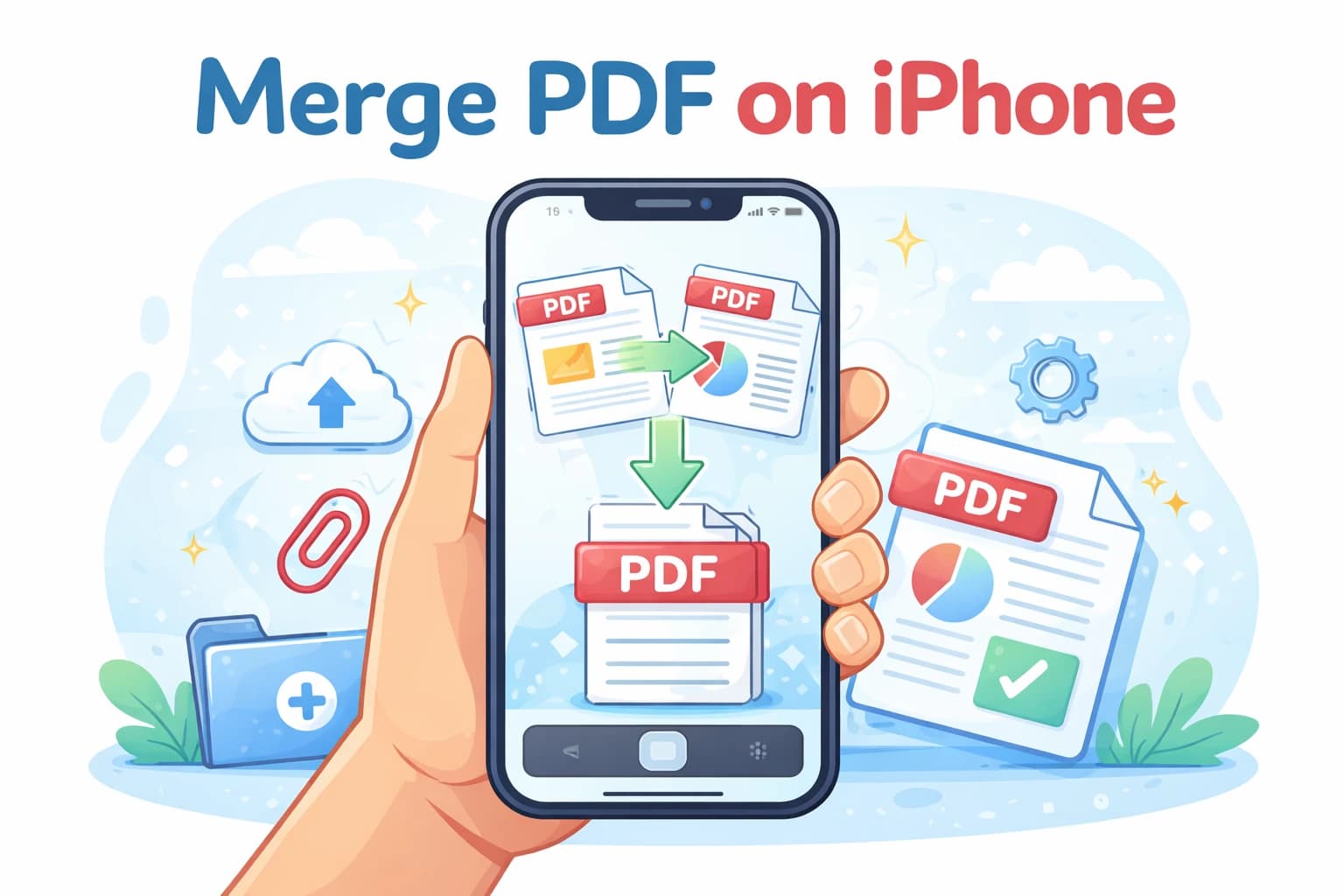
You don't need a computer to merge PDF files. Whether you're on an iPhone, an iPad, or an Android device, you can combine PDFs directly from your browser — no app download, no account, no subscription. The process takes the same three steps as on a desktop and works on any mobile browser including Safari, Chrome, and Firefox.
Here's exactly how to do it on both iOS and Android.
In short
- ✔ Works on iPhone, iPad, and all Android devices
- ✔ No app needed — runs entirely in your mobile browser
- ✔ Upload from Files, Google Drive, Dropbox, or your downloads
- ✔ Free, no account required
How to merge PDFs on iPhone (Safari)
Open Safari on your iPhone or iPad and go to the merge tool. The steps are identical to the desktop version:
Open the tool and upload your files
Tap the upload area on the merge PDF page. Your iPhone will let you browse the Files app, iCloud Drive, or any other connected storage. Select all the PDFs you want to combine.
Arrange the order
Once your files are uploaded, you can drag them into the order you want. The merged PDF will follow the same sequence — all pages from the first file, then all pages from the second.
Download to your iPhone
Tap merge and then download. Safari will save the file to your Downloads folder (accessible via the Files app). From there you can share it, email it, or open it in any app that handles PDFs.
How to merge PDFs on Android (Chrome)
The process on Android is identical. Open Chrome (or any browser) and navigate to the merge tool. Tap the upload area to open your file picker — Android will let you browse your Downloads folder, Google Drive, or any other connected storage. Select your files, arrange the order, tap merge, and download.
The downloaded file will appear in your Downloads folder and can be opened directly in Chrome, in a dedicated PDF app, or shared to any other app using Android's share sheet.
What if my PDFs are in Google Drive or Dropbox?
On both iPhone and Android, the file picker that opens when you tap upload gives you access to cloud storage accounts you've connected to your device. If Google Drive or Dropbox is connected to your phone, you'll be able to select files from those services directly — no need to download them to your device first.
On iPhone, connected cloud services appear in the Files app under “Locations.” On Android, they appear as options in the file picker. Either way, you can select files from multiple sources in a single upload session.
Does iOS have a built-in way to merge PDFs?
iOS has limited built-in PDF handling. The Files app on iPhone and iPad lets you view PDFs, but doesn't merge them natively. You can create a PDF from the Print menu in some apps, but there's no system-level tool for combining multiple existing PDFs.
For most users, a browser-based tool is the quickest path — no app to install, no in-app purchases, no export limitations. It works the same whether you're on iOS 16 or iOS 18.
Frequently asked questions
Does it work on older iPhones and Android devices?
Yes. The tool runs in the browser and doesn't require any specific hardware features. As long as your browser can access the internet and open file pickers, it will work — regardless of how old the device is.
Where does the merged file get saved on iPhone?
Safari saves downloaded files to the Downloads folder in the Files app by default. You can change this in Settings → Safari → Downloads. From the Files app you can then move the file, share it, or open it in any compatible app.
Can I merge PDFs from iPhone to send via WhatsApp or iMessage?
Yes. Once the merged file is in your Downloads folder, you can attach it to a message via the Files app or directly from within WhatsApp, iMessage, or any messaging app that supports file attachments.
Is there a file size limit for mobile uploads?
The tool handles any file size that your browser can upload. Very large files may take longer to upload on a slower mobile connection, but there's no fixed size limit. For very large batches, a Wi-Fi connection is recommended.