How to Convert PDF to JPG for Free
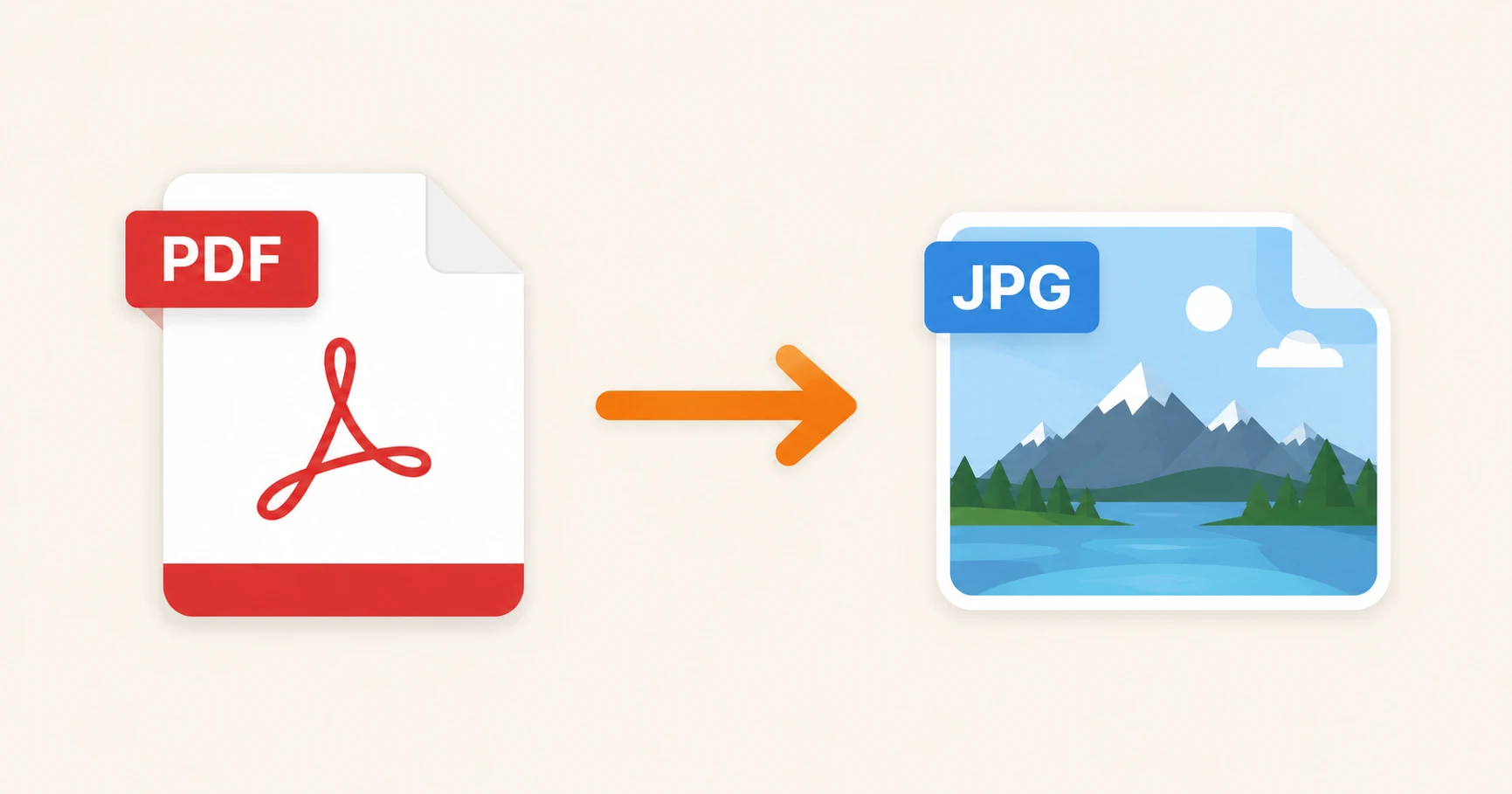
Sometimes you don't need an entire PDF — you just need one page as an image. Whether you're pulling a chart for a presentation, sharing a certificate on social media, or inserting a document page into a Word file, converting PDF to JPG takes a few seconds and requires no software. All you need is a browser.
In short
- ✔ Convert PDF pages to JPG images — one page or the whole document
- ✔ Free, no registration, no app to install
- ✔ Works on desktop, iPhone and Android
- ✔ High-quality output — sharp text and images preserved
Why convert a PDF to JPG?
PDFs are great for documents, but images are more versatile for sharing single pages. A JPG file opens instantly in any photo viewer, can be pasted directly into emails or chat apps, and works in tools that don't support PDF embedding — like PowerPoint, Google Slides, or social media platforms.
- —Sharing a single page of a report or certificate as an image
- —Inserting a PDF page into a Word document or presentation
- —Posting a document-based graphic on Instagram or LinkedIn
- —Archiving specific pages as standalone image files
- —Using a PDF chart or table in a tool that only accepts images
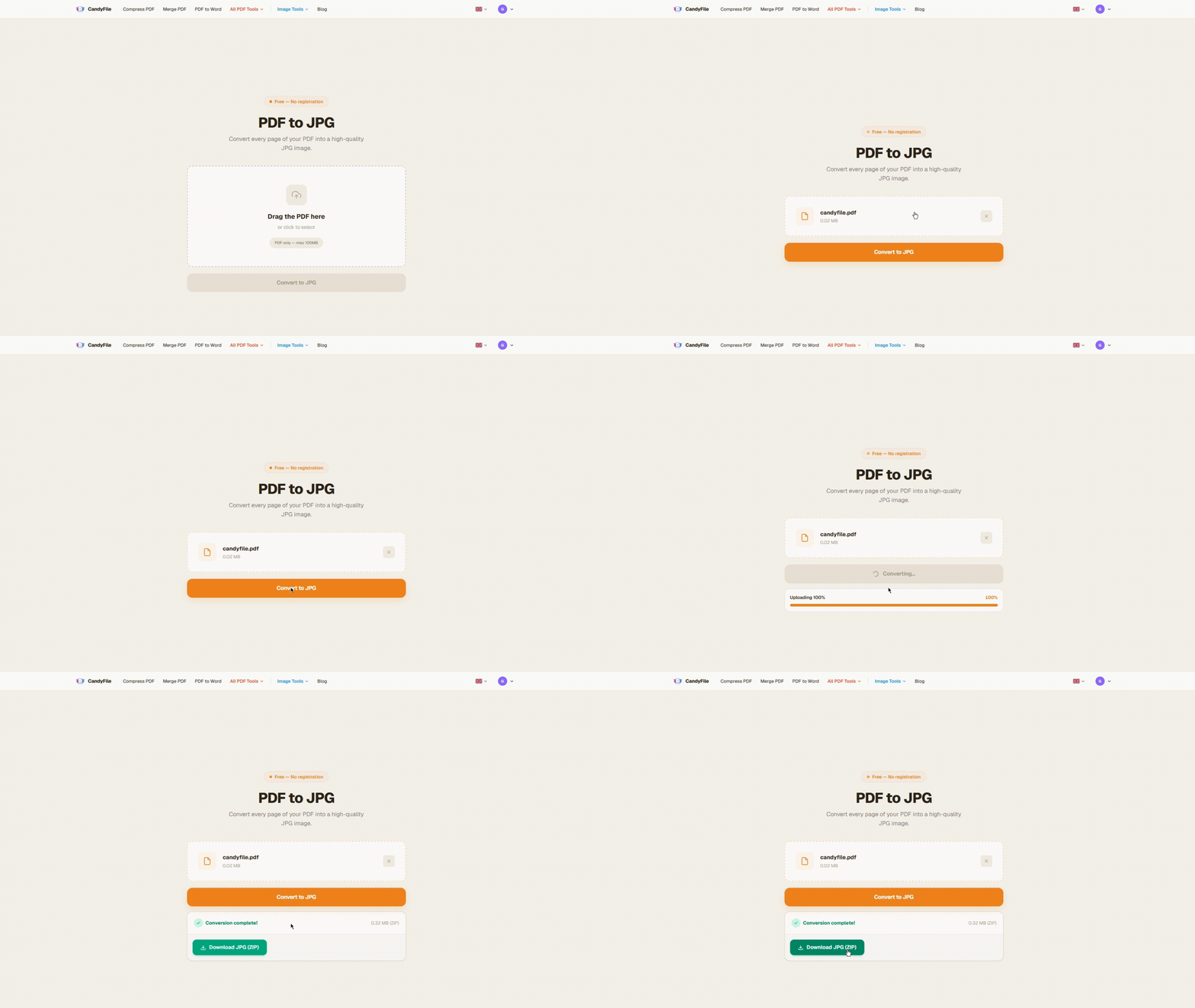
How to convert PDF to JPG in 3 steps
No account, no software — open the tool in your browser and follow these steps.
Upload your PDF
Open the PDF to JPG converter and drag your file onto the page, or click to select it from your device. Any PDF works — single page or multi-page documents.
Choose the pages to export
Select whether you want to convert all pages or just specific ones. Each page is exported as a separate JPG file. The tool processes everything in a few seconds regardless of document length.
Download your JPG images
Once conversion is complete, download your images individually or as a ZIP file if you exported multiple pages. Each JPG is sharp, high-resolution, and ready to use.
What quality will the JPG have?
The output JPG images are rendered at high resolution — text stays sharp and images inside the PDF remain clear. The quality is suitable for presentations, web use, and most print applications.
Practical tip: if the resulting JPG files are too large to share easily, you can compress them separately. For most use cases — presentations, emails, social media — the default quality is more than sufficient.
Can I convert a multi-page PDF?
Yes. A 10-page PDF produces 10 separate JPG files — one per page. You can download them individually or as a single ZIP archive, which keeps them organized and named sequentially.
If you only need a specific page — say page 3 of a 20-page report — you can select just that page and skip the rest. No need to split the PDF first.
Does it work on iPhone and Android?
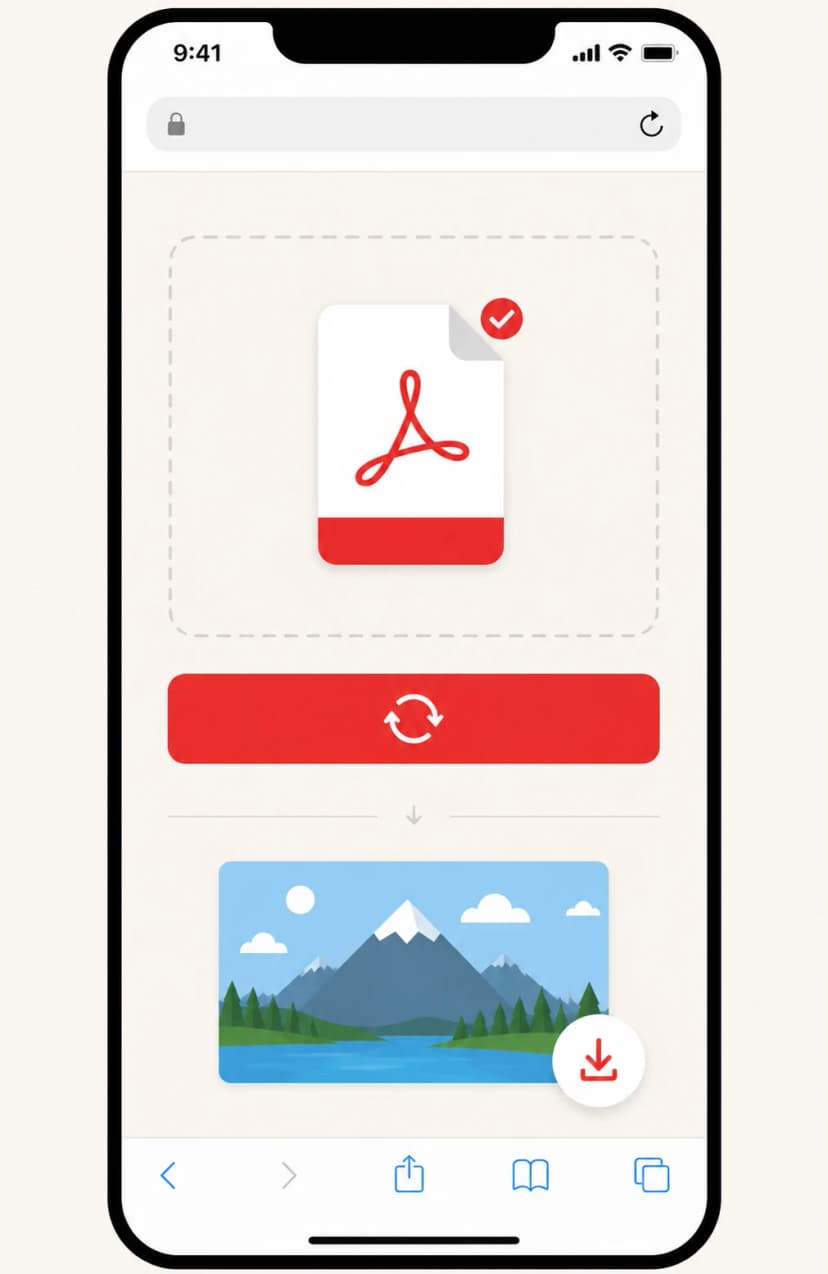
Yes. The tool runs entirely in the browser — no app needed. Open it in Safari or Chrome on your phone, upload a PDF from your Files app, and download the resulting JPG images directly to your device.
PDF to JPG vs PDF to PNG — which to choose?
JPG is smaller and loads faster — ideal for sharing, emailing, and web use. PNG is lossless and supports transparency — better if the PDF has a white background you want to keep transparent or if pixel-perfect accuracy matters.
For most everyday uses — presentations, social media, email attachments — JPG is the right choice. If you need PNG instead, CandyFile has a PDF to PNG converter that works the same way.
Frequently asked questions
Is there a page limit for PDF to JPG conversion?
No. You can convert PDFs of any length. Each page becomes a separate JPG file. For large documents, the download is packaged as a ZIP so you get all images in one click.
Are my files stored after conversion?
No. Files are processed and deleted immediately after conversion. CandyFile does not store or share your documents — your data stays private.
Can I convert a password-protected PDF?
Not directly. If your PDF is password-protected, you'll need to remove the password first. Use the PDF unlock tool and then convert the unlocked file.
Will text in the PDF remain readable in the JPG?
Yes. The pages are rendered at high resolution, so text stays sharp and legible. The output looks identical to the original PDF page viewed at 100% zoom.
Can I convert just one specific page?
Yes. After uploading, you can choose which pages to export. Select a single page, a range, or the entire document — only the selected pages are converted and downloaded.
Convert PDF to JPG in seconds
Free, online, no registration. Works on any device.
Convert PDF to JPG free