
How to Convert PNG to PDF Online for Free
Need to convert a PNG image to PDF? Whether it's a screenshot, a graphic, or a diagram, the process takes seconds — no software, no account, no cost. Open the tool in your browser and you're done.
In short
- ✔ Convert one or multiple PNG files into a single PDF
- ✔ Free, no registration, no app to install
- ✔ Transparency handled correctly — no black backgrounds
- ✔ Original resolution fully preserved
- ✔ Works on desktop, iPhone and Android
Why convert PNG to PDF?
PNG is a great format for storing images with high detail or transparency — but it's not always the right format to share. A raw PNG file opens differently depending on the device, doesn't behave like a document, and can't easily be combined with other files.
PDF solves this. It opens consistently on every device and operating system, has fixed page dimensions, and is the standard format for professional and formal document exchange. Converting your PNG to PDF makes it universally readable and ready to share.
- —Sending a screenshot or diagram as a formal attachment
- —Submitting a signed document or ID scan
- —Combining multiple graphics or charts into a single report
- —Archiving design assets in a portable, printable format
- —Preparing images for an application or presentation package
How to convert PNG to PDF in 3 steps
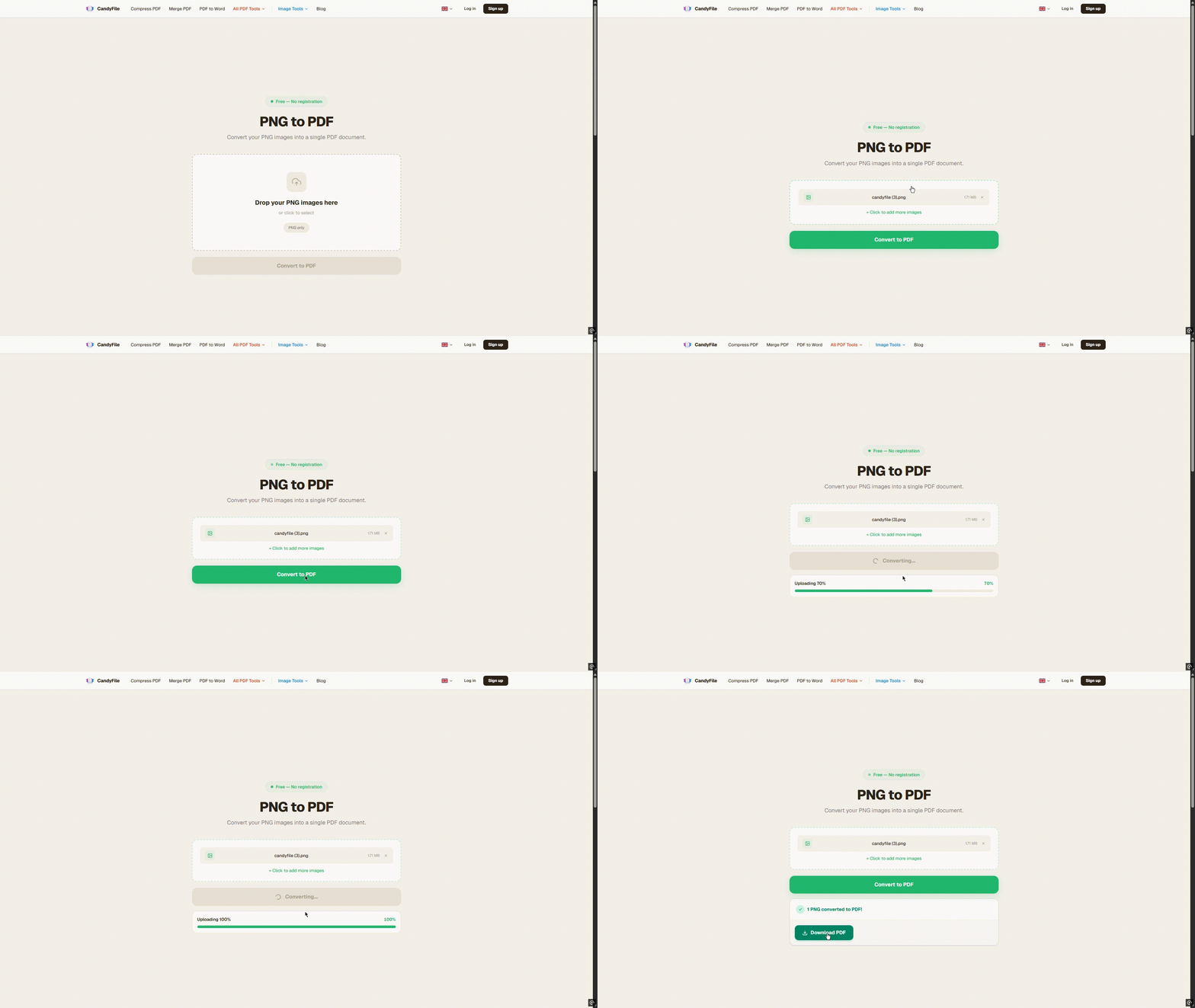
No account, no software. Open the tool in your browser and follow these steps.
Upload your PNG images
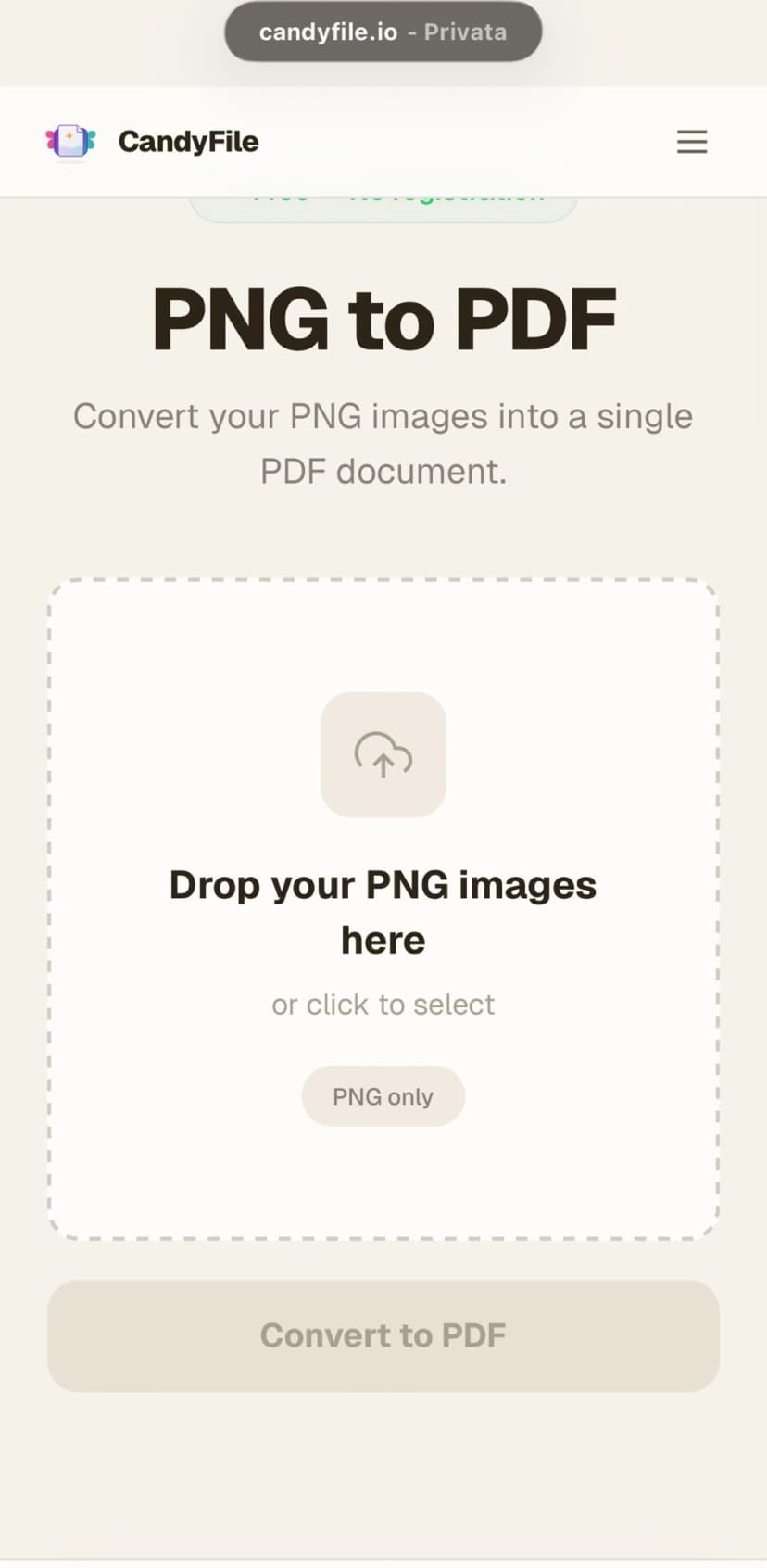
Open the PNG to PDF converter and drag your files onto the page, or click to browse. You can upload one image or several — they are all placed into a single PDF in upload order.
Click Convert to PDF
Once your images are loaded, hit the convert button. The tool processes everything in a few seconds — even high-resolution PNGs and batches of multiple files.
Download your PDF
A download button appears when conversion is complete. Click it to save the PDF. Each image occupies one page, at its original resolution, ready to share or submit.
What happens to PNG transparency?
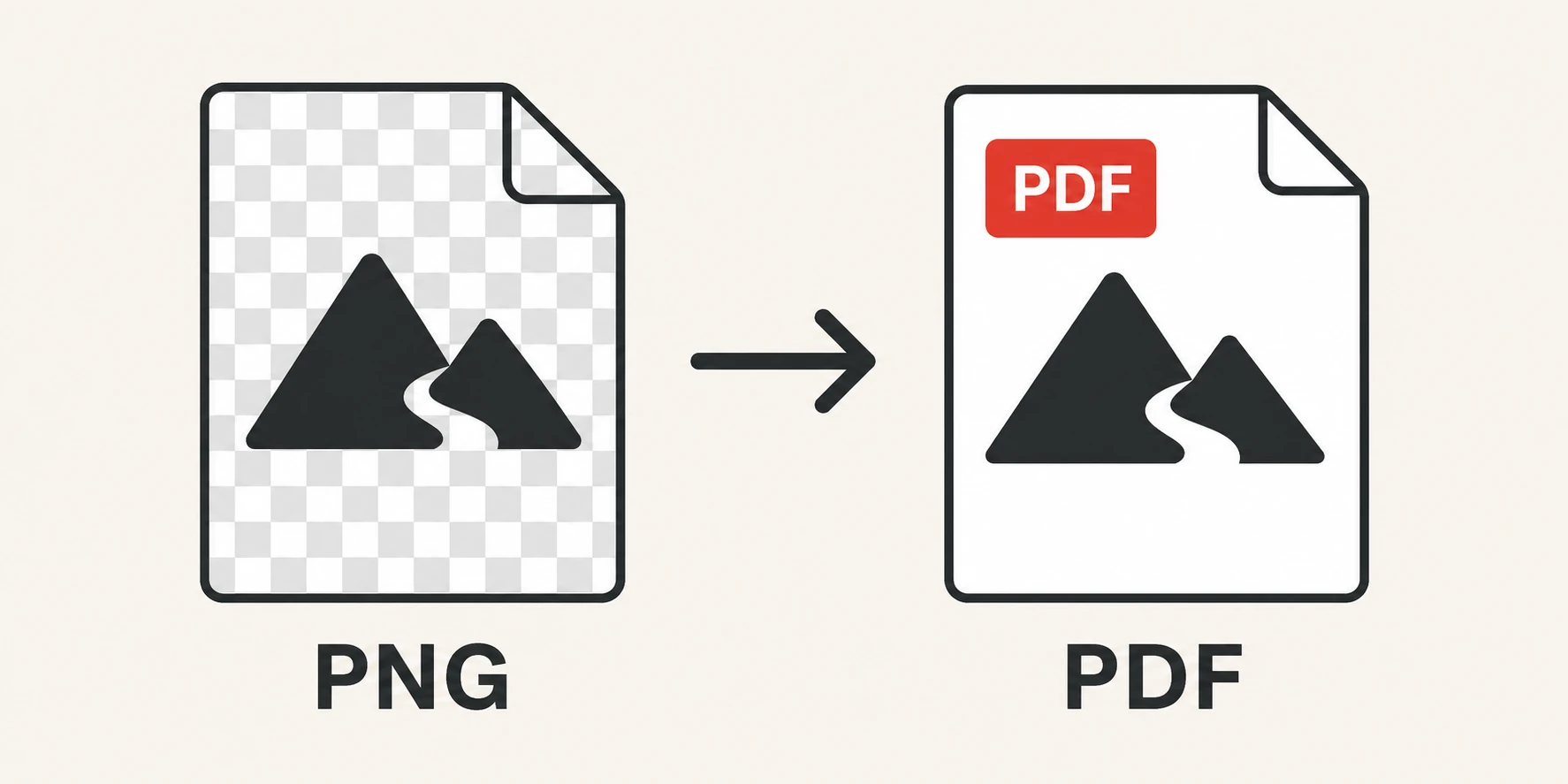
This is the most common concern when converting PNG to PDF. PNG files often have transparent backgrounds — logos, icons, cutout graphics. The wrong converter replaces transparency with a solid black background, which ruins the output.
CandyFile handles transparency correctly. Transparent areas are converted to white in the PDF — which is the standard behavior for print-ready documents — so your graphics look clean and professional.
Can I convert multiple PNG files at once?
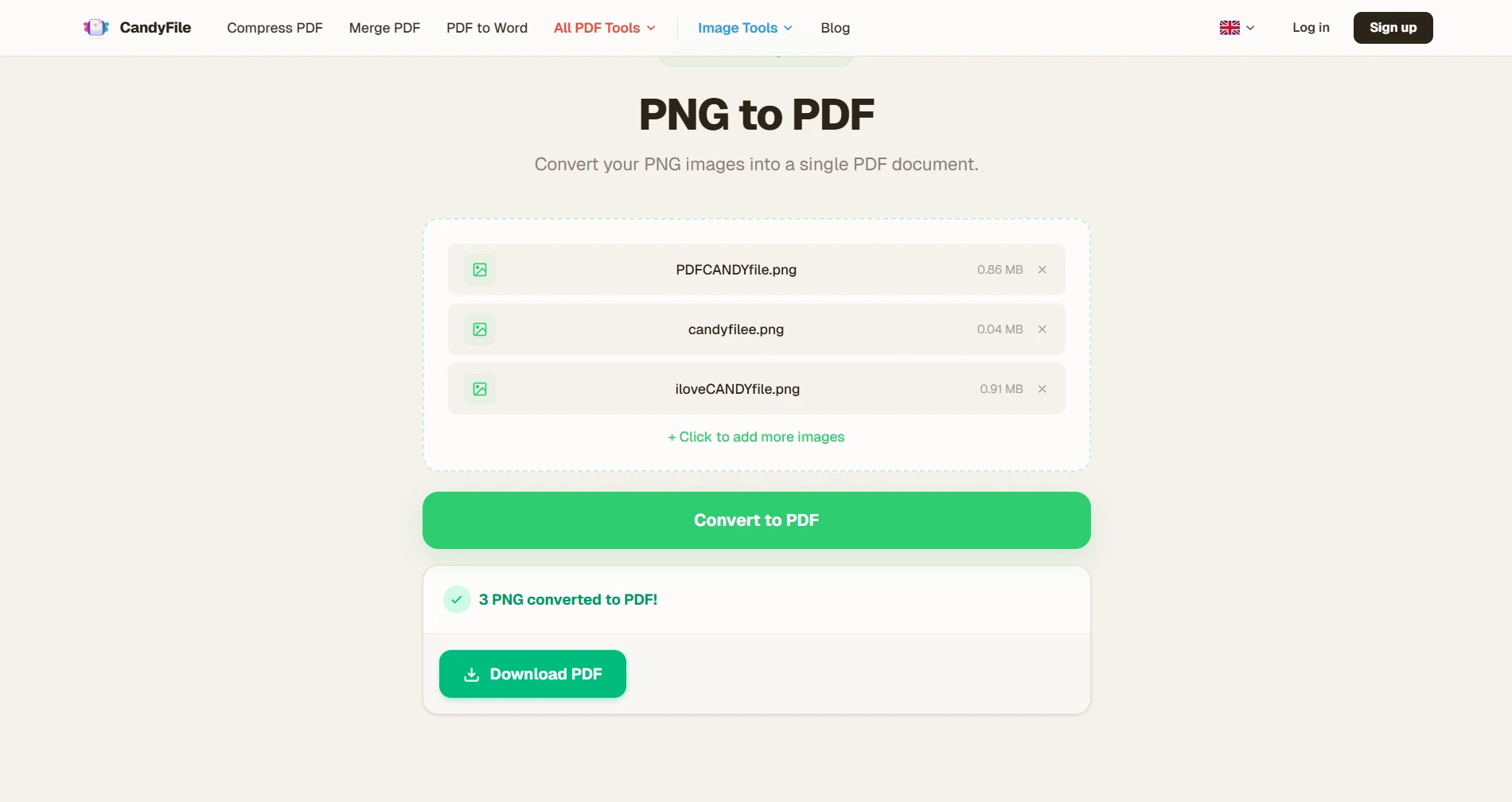
Yes. Upload as many PNG files as you need — they all end up as separate pages inside a single PDF. The page order matches the upload order, so if sequence matters, add your files in the right order from the start.
Five diagrams become a five-page PDF. A set of screenshots becomes a multi-page document. There is no cap on the number of images.
Does it work on iPhone and Android?
Yes. The tool runs entirely in the browser, so it works on any device without installing anything. Open it in Safari or Chrome on your phone, upload your PNG from the Files app or camera roll, and download the PDF directly to your device.
Is the image quality preserved?
Your PNG files are embedded in the PDF at their original resolution. The converter does not resize, compress, or re-encode the images — the pixels you put in are exactly the pixels that come out, just packaged inside a PDF file.
If the resulting PDF is too large to email — which can happen with high-resolution PNGs — you can reduce its size with the PDF compressor as a quick follow-up step.
Practical tip: high-resolution PNG files — like 4K screenshots or design exports — produce large PDFs. If your file exceeds 10 MB and you need to email it, run it through the compressor after converting. Most mail servers cap attachments at 25 MB; some corporate servers at 10 MB.
PNG vs JPG — which is better to convert to PDF?
Both work fine for PDF conversion. The choice depends on your original file:
- —Use PNG when your image has transparency, sharp edges, text, or is a screenshot — PNG preserves these perfectly without compression artifacts.
- —Use JPG when your image is a photo — JPG files are already compressed and produce smaller PDFs with no visible quality difference.
If you have JPG images to convert, the JPG to PDF converter works the same way. You can also convert WEBP to PDF if needed.
Frequently asked questions
Is the PNG to PDF converter really free?
Yes, completely free. No account, no subscription, no watermark on the output. Just upload your PNG and download the PDF.
Are my PNG files stored on the server?
No. Files are processed and immediately deleted after the PDF is generated. CandyFile does not store, access, or share your images — what you upload stays private.
Can I convert PNG to PDF on a Mac?
Yes. The tool works in any browser — Chrome, Safari, Firefox, Edge. Open it on your Mac, upload the PNG, and download the PDF. No software to install.
What if my PNG has a transparent background?
Transparent areas are converted to white — the standard behavior for PDF documents. Your image will look clean without any black fill or artifacts.
Can I reduce the PDF size after converting?
Yes. After downloading your PDF, run it through the PDF compressor to reduce the file size while keeping good visual quality.
Can I convert a PNG to PDF without losing quality?
Yes. The converter embeds your PNG at full original resolution with no re-encoding. The image quality in the PDF is identical to the source file.
Convert PNG to PDF in seconds
Free, online, no registration. Works on any device.
Convert PNG to PDF free