
HEIC vs JPG: Which Format Is Better for Photos?
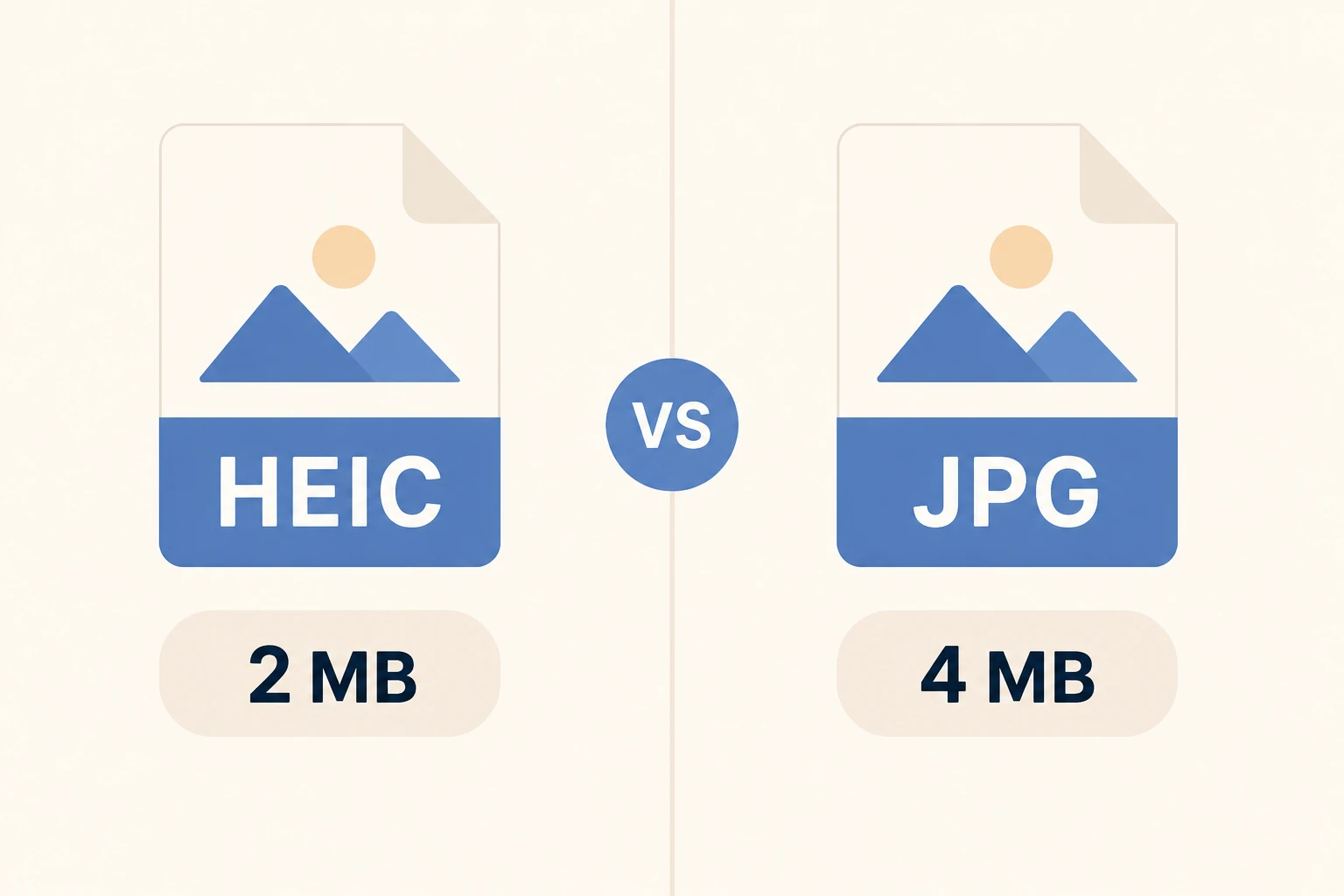
Every iPhone photo taken since iOS 11 is saved in HEIC by default. Most people don't notice — until a HEIC file refuses to open on Windows, won't upload to a website, or comes out as a blank file on an Android phone. That's when the HEIC vs JPG question becomes relevant.
The short answer: HEIC is technically better, JPG is universally supported. Which one to use depends entirely on what you're doing with the photo.
In short
- ✔ HEIC is 50% smaller than JPG at the same visual quality
- ✔ JPG works everywhere — every device, every app, every website
- ✔ iPhone uses HEIC by default to save storage space
- ✔ Converting HEIC to JPG takes seconds and preserves quality
What is HEIC?
HEIC stands for High Efficiency Image Container. It's a modern image format built on HEVC — the same video compression technology used for 4K streaming. Apple introduced it with iOS 11 in 2017 as the default camera format precisely because it's so efficient: a HEIC photo is typically half the file size of the equivalent JPEG, with no visible loss in quality.
HEIC also supports things JPG can't: Live Photos (the short clip your iPhone records around each shot), depth maps for portrait mode, HDR metadata, and sequences of multiple images stored in a single file. It's a genuinely more capable format — it just isn't supported everywhere yet.
What is JPG?
JPG (or JPEG) is the format that has dominated digital photography for over 30 years. It uses lossy compression — some image data is discarded to reduce file size — but at high quality settings, the result is visually indistinguishable from the original. The trade-off is file size: JPG is efficient, but HEIC is significantly more efficient.
What JPG has that HEIC doesn't is near-universal support. Every operating system, every browser, every app, every camera, every website, every print service — they all support JPG without any configuration or additional software. That's still a decisive advantage for anything involving sharing or compatibility.
HEIC vs JPG: key differences
Which photo format does iPhone use by default?
iPhone saves photos in HEIC by default since iOS 11. This is the “High Efficiency” setting under Settings → Camera → Formats. Apple chose this format because it lets the camera store roughly twice as many photos in the same amount of storage — a significant benefit on devices with limited space.
There's one important exception: when you share a photo from iPhone to a non-Apple device or upload it through AirDrop to a Mac running an older macOS, iOS can automatically convert it to JPG on the fly. But when you transfer files directly — via USB, email attachment, or cloud storage — you get the original HEIC file.
You can switch your iPhone to save photos as JPG instead: go to Settings → Camera → Formats and select “Most Compatible”. The camera will then save every photo as a standard JPEG — at the cost of roughly double the storage per photo.
When HEIC is the right choice
- —You're keeping photos on your iPhone or in iCloud and storage space matters
- —You're sharing with other iPhone or Mac users
- —You use Live Photos and want to preserve the motion clip
- —You're working within the Apple ecosystem end-to-end
When JPG (or converting) is the right choice
- —You're sharing with Windows or Android users
- —You're uploading to a website, form, or social platform
- —You're sending to a print shop or photo service
- —You're editing the photo in software that doesn't support HEIC
- —You're submitting a photo ID, document, or official form
Tip: if you frequently send photos to people outside the Apple ecosystem, it's worth converting before you share rather than hoping the recipient's device handles HEIC. The conversion takes seconds and eliminates compatibility headaches entirely.
How to convert HEIC to JPG
The fastest method is a browser-based converter — no app to install, works directly from iPhone, Android, Mac, or Windows.
Open the converter
Go to the HEIC to JPG converter on CandyFile. No account or software needed.
Upload your HEIC photo
Drag the file onto the page or tap to select it from your device. The format is detected automatically.
Download the JPG
Conversion takes a few seconds. The resulting JPG opens on any device, in any app, and uploads to any platform without issues.
If you want to read more about the conversion process specifically, see the full guide on how to convert HEIC to JPG.
Frequently asked questions
Is HEIC better quality than JPG?
HEIC achieves the same or better visual quality at a smaller file size. At equivalent settings, the two formats look identical to the human eye. HEIC's advantage is efficiency: it compresses more without visible degradation. JPG at maximum quality settings produces excellent results too — it just takes up more space.
Why can't Windows open my HEIC files?
Windows doesn't include native HEIC support. You can install the HEVC Video Extensions from the Microsoft Store (it's paid on older versions of Windows 10), or simply convert your HEIC files to JPG before transferring them — which is faster and free.
Does iPhone save photos as HEIC or JPG?
By default, iPhone saves photos in HEIC since iOS 11. You can change this in Settings → Camera → Formats by selecting “Most Compatible”, which saves photos as JPG instead. The trade-off is roughly double the storage per photo.
Does converting HEIC to JPG reduce quality?
Only negligibly at high quality settings. JPG uses lossy compression, so some data is technically discarded — but at 80–95% quality, the result is visually identical to the original. For sharing, printing, or posting online, you will not notice any difference.
Can I batch convert multiple HEIC files to JPG at once?
Yes. CandyFile's converter supports batch uploads — select or drag multiple HEIC files at once and download the converted JPGs in one go. Converting one at a time makes no sense when you have a full camera roll to deal with.
Convert HEIC to JPG in seconds
Free, online, no registration. Works on iPhone, Android, Mac and Windows.
Convert HEIC to JPG free