
How to Repair a Corrupted PDF File
(5 Methods That Work)
You try to open a PDF and instead of your document you get a message: “The file is damaged and could not be repaired.” Or the file opens to a blank page, an error icon, or crashes your PDF reader entirely. A corrupted PDF is frustrating — especially when the file contains something you actually need.
The good news is that not all corrupted PDFs are permanently lost. Whether the corruption happened during a download, after a system crash, or from a storage error, there are several methods that can recover your file — and most of them are free and require no software installation. This guide walks through every option, from the quickest fix to the most thorough fallback.
If you already know what corrupted a PDF means and just want the fix, jump straight to Method 1.
In short
- ✔ Online repair tools are the fastest first attempt — no software needed
- ✔ The Google Docs trick works when structural metadata is broken but content is intact
- ✔ Adobe Acrobat has a built-in repair that runs automatically on open
- ✔ Trying a different PDF viewer sometimes bypasses the error entirely
- ✔ If nothing works, recover from source — the email, cloud storage, or original export
Can a corrupted PDF actually be repaired?
It depends on what was damaged. A PDF file has several internal layers: the file header (a signature that identifies it as a PDF), the body (content objects like text, images, and fonts), a cross-reference table (a map that tells viewers where each object is located), and a trailer that ties everything together.
If only the structural metadata — the cross-reference table or trailer — was damaged, repair is usually possible. PDF repair tools scan the raw binary data for intact content objects and rebuild the structure around them. The result is often a fully readable document.
If the content streams themselves were overwritten — which happens with serious disk failures or file truncation from a crashed download — recovery may be partial or impossible. In that case, the best path is recovering the file from its original source.
Quick check before you start: make sure the file is actually corrupted and not just password-protected, incompatible with your PDF version, or misnamed (a non-PDF file with a .pdf extension). A truly corrupted PDF returns an error on every viewer — if it opens on one app and not another, it might just be a compatibility issue.
Method 1 — Use an online PDF repair tool
The fastest and most accessible option. Online PDF repair tools work by analyzing the binary structure of your file and attempting to reconstruct a valid PDF from whatever intact data remains. No installation required — the entire process runs in your browser.
Here is how to repair a corrupted PDF with CandyFile:
Open the repair tool
Go to the PDF repair tool. No account or registration required.
Upload your corrupted PDF
Drag and drop the damaged file onto the page, or click to browse. The tool accepts any PDF regardless of size.
Download the repaired file
The tool reconstructs the PDF structure and returns a repaired copy. Download it and open it normally in any PDF viewer.
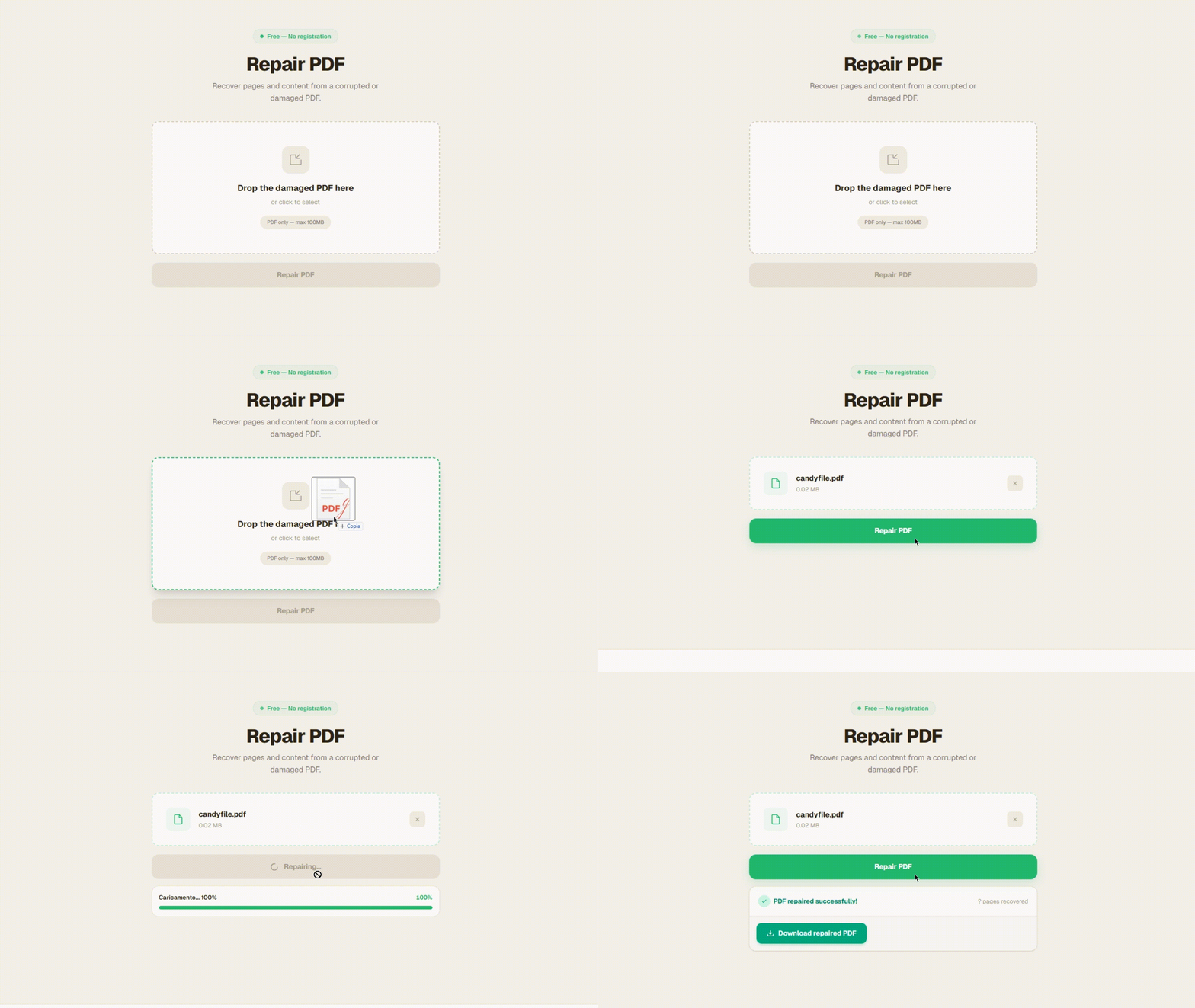
Upload the corrupted file → wait for processing → download the repaired PDF
Method 2 — Try a different PDF viewer
Not all PDF readers are equally strict about structural errors. Adobe Acrobat, macOS Preview, Chrome, Firefox, and Foxit each use a different parsing engine. A file that fails in one application might open fine in another — especially when the corruption is minor (a malformed cross-reference entry, a slightly truncated trailer, or a versioning issue).
Before running any repair tool, try opening the file in at least two or three different viewers:
If the file opens in one viewer but not another, immediately print to PDF (File → Print → Save as PDF) to create a clean, valid copy. This is often the simplest fix available.
Method 3 — The Google Docs trick
This is one of the most underrated PDF recovery techniques and it works surprisingly often. Google Docs uses its own content extractor that is more tolerant of structural damage than standard PDF readers. When you upload a corrupted PDF to Google Drive and open it with Google Docs, it bypasses the broken structure and renders whatever content it can extract directly.
How to do it:
Upload to Google Drive
Go to drive.google.com and upload the corrupted PDF file. You can drag it directly into the Drive window.
Open with Google Docs
Right-click the uploaded file → Open with → Google Docs. Google will convert the PDF into an editable document, extracting whatever text and images it can recover.
Export back to PDF
Go to File → Download → PDF Document (.pdf). This gives you a clean, valid PDF rebuilt from the recovered content.
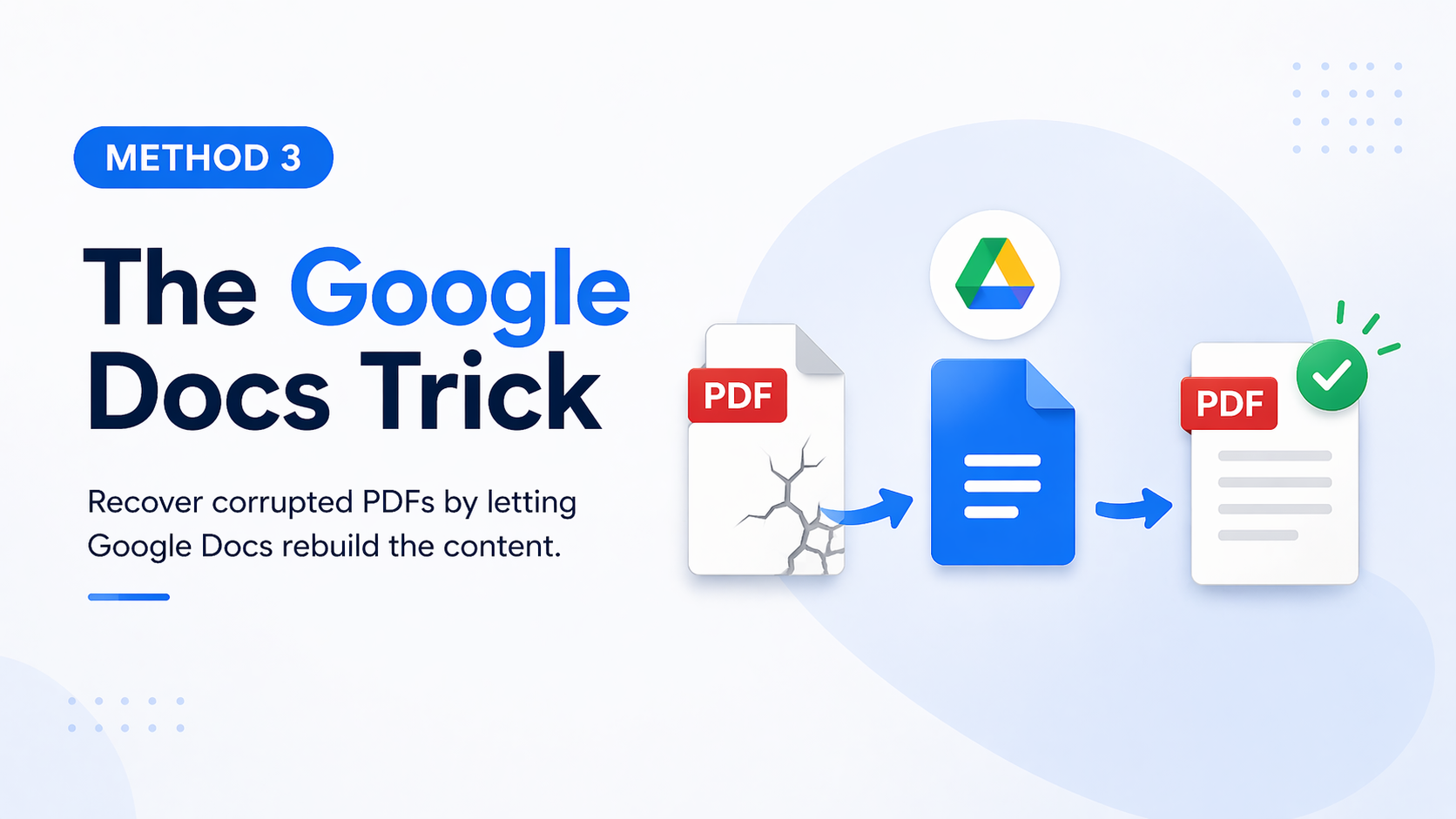
Upload to Google Drive → Open with Google Docs → Download as PDF
Keep in mind: Google Docs is a word processor, not a PDF renderer. Complex layouts — multi-column text, tables, vector graphics — may not convert perfectly. The text content usually recovers well, but formatting precision may be lost. If that matters for your use case, the online repair tool is a better option.
Method 4 — Adobe Acrobat's built-in repair
If you have Adobe Acrobat (not just Adobe Reader), it includes a built-in repair function that activates automatically when it detects a damaged file. In many cases this happens silently — Acrobat attempts to rebuild the cross-reference table on open. If that automatic repair fails, you can trigger it manually.
In Acrobat Pro, go to Edit → Preflight, select Fix-ups in the Preflight panel, and run the structural fix-up on the file. Alternatively:
Open Acrobat Pro and go to File → Save As → Optimized PDF
In the PDF Optimizer dialog, click Audit space usage — this forces Acrobat to re-parse the document
Save the output as a new file and try opening that instead
This approach requires a paid Acrobat license. If you see the error “The file is damaged and could not be repaired” even after Acrobat's automatic attempt, the corruption is likely too extensive for Acrobat's engine. Move on to the Google Docs method or an online repair tool.
Method 5 — Recover from the original source
If all repair attempts fail, the most reliable path is to retrieve the file from where it came from. This is more often possible than people expect:
Check your email
If someone sent you the PDF by email, the original attachment is still in your inbox. Download it again — the original is untouched.
Check cloud storage
Google Drive, Dropbox, OneDrive and iCloud all keep version histories. Even if the current version is corrupted, an earlier version may still be intact. Look for 'Version history' or 'Restore previous version' in the file menu.
Re-export from the source application
If the PDF was originally created from a Word document, an Excel file, or a design tool — open the original and export to PDF again. The source file is almost certainly fine.
Check the website
If the PDF was downloaded from a website, try downloading it again. The corruption likely happened during the first download, and the server copy is intact.
How to prevent PDF corruption in the future
Most PDF corruption is preventable. The most common causes are interrupted downloads, storage hardware failures, and system crashes during saving. A few simple habits protect your files:
Frequently asked questions
Can a corrupted PDF always be repaired?
Not always. If the content streams are still intact, an online repair tool can often recover most or all of the text and images. If the file was truncated or overwritten with random data, only partial recovery is possible — or none at all.
Does Google Docs really fix corrupted PDFs?
Sometimes. Google Docs uses its own parser to extract content from PDFs. If the corruption is limited to structural metadata (like the cross-reference table or trailer), Docs can often render the content anyway. It converts the PDF to an editable Google Doc, which you can then export back to PDF. Complex formatting may not survive perfectly.
Why does Adobe Acrobat say “the file is damaged and could not be repaired”?
This error appears when Acrobat's built-in recovery fails — usually because the corruption is too extensive or affects the core content streams. Try an online PDF repair tool or the Google Docs method instead, as they use different parsing engines and handle some cases better.
Is it safe to upload a corrupted PDF to an online repair tool?
Yes, as long as you use a reputable tool. CandyFile processes your file temporarily on the server and deletes both the original and repaired copy automatically when the session ends. No content is stored permanently, and no one has access to your document.
What causes PDF corruption in the first place?
The most common causes are interrupted downloads (the file is saved before it finishes transferring), storage hardware failures (bad sectors on an HDD or SSD overwriting parts of the file), system crashes during saving, and failed PDF export or conversion processes. Learn more in our article on what a corrupted PDF actually is.
Will the repaired PDF look identical to the original?
Usually yes, when the repair tool reconstructs the file from intact content streams. The text, images, and layout come from the same data as the original. Minor differences can appear if some objects were damaged and had to be omitted.
Related articles
What Is a Corrupted PDF File?
Understand what happens inside a corrupted PDF — and why some files can be repaired while others can't.
How to Corrupt a PDF File
The opposite problem: need a broken PDF for testing? Create one in seconds, no software needed.
How to Corrupt a PDF for Submission
Need to submit a broken PDF for QA or testing purposes? Here's how.
How to Send a Corrupted PDF by Email
Step-by-step guide to creating and sending a broken PDF for testing and documentation.
Repair your PDF now
Free online tool — no registration, no software. Works on desktop and mobile.
Repair PDF — free