
How to Convert HEIC to JPG on Windows (Fast & Free)
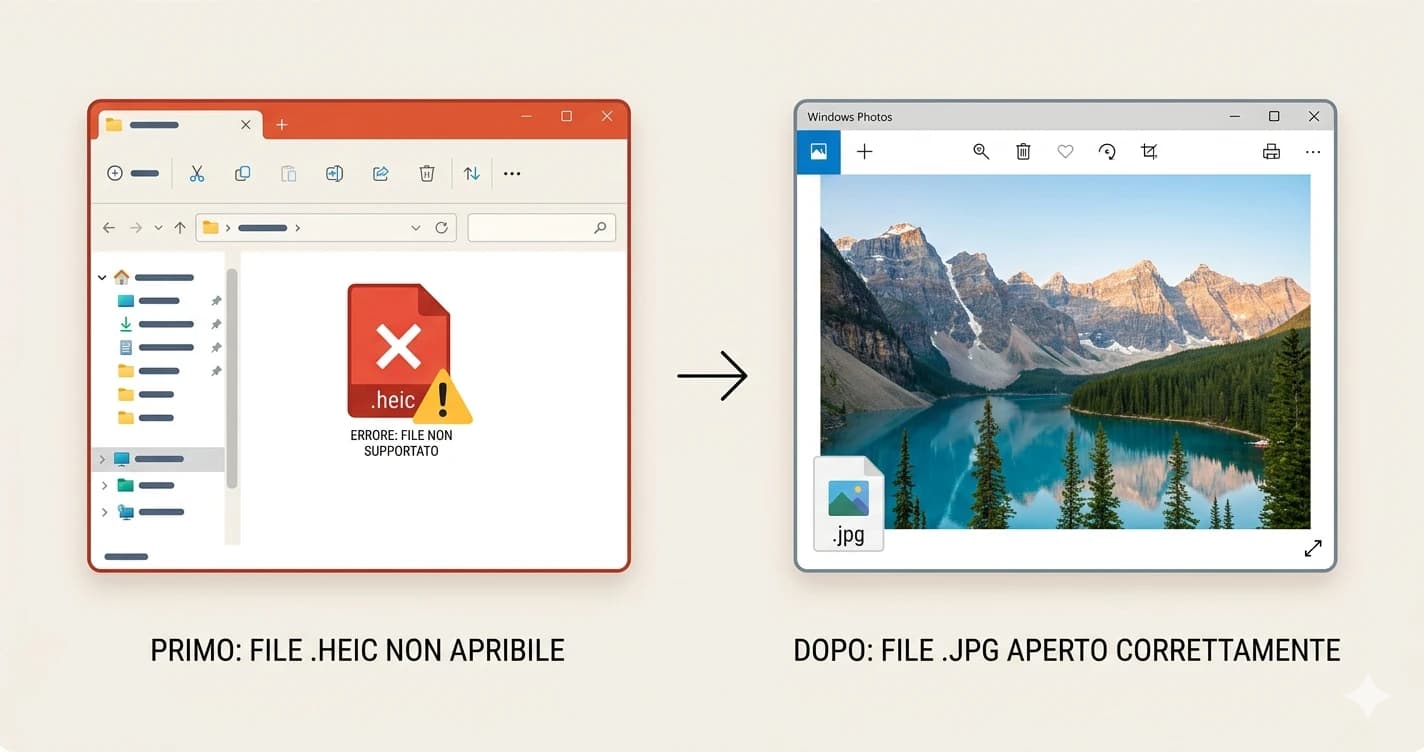
You plugged your iPhone into your Windows PC, copied some photos, and now they won't open. Windows shows a generic icon or an error — because the files are HEIC, and Windows doesn't support them natively. This is one of the most common frustrations for iPhone users on Windows, and the fix takes about thirty seconds.
To convert HEIC to JPG on Windows you don't need to buy a codec or install any software. A browser-based converter handles it instantly, and the resulting JPG opens on any version of Windows without any additional tools.
In short
- ✔ Convert HEIC to JPG online — free, no software needed
- ✔ Works on Windows 10 and Windows 11
- ✔ No paid HEVC codec required
- ✔ Batch convert multiple iPhone photos at once
Why Windows can't open HEIC files
HEIC is Apple's preferred photo format since iOS 11. It's based on the HEVC video codec — the same compression used for 4K streaming — which is why it achieves such efficient file sizes. The problem is that HEVC is a patented technology, and Microsoft hasn't bundled the required decoder in Windows by default.
Microsoft does offer a solution: the HEVC Video Extensions codec available in the Microsoft Store for around $0.99. Installing it lets Windows Photos and other apps open HEIC files natively. But there's a free alternative that works without any installation at all — converting the files to JPG before you need to open them.
How to convert HEIC to JPG on Windows (online method)
The simplest method is to use a browser-based converter. No downloads, no installation — just open a tab in Chrome or Edge and convert directly.
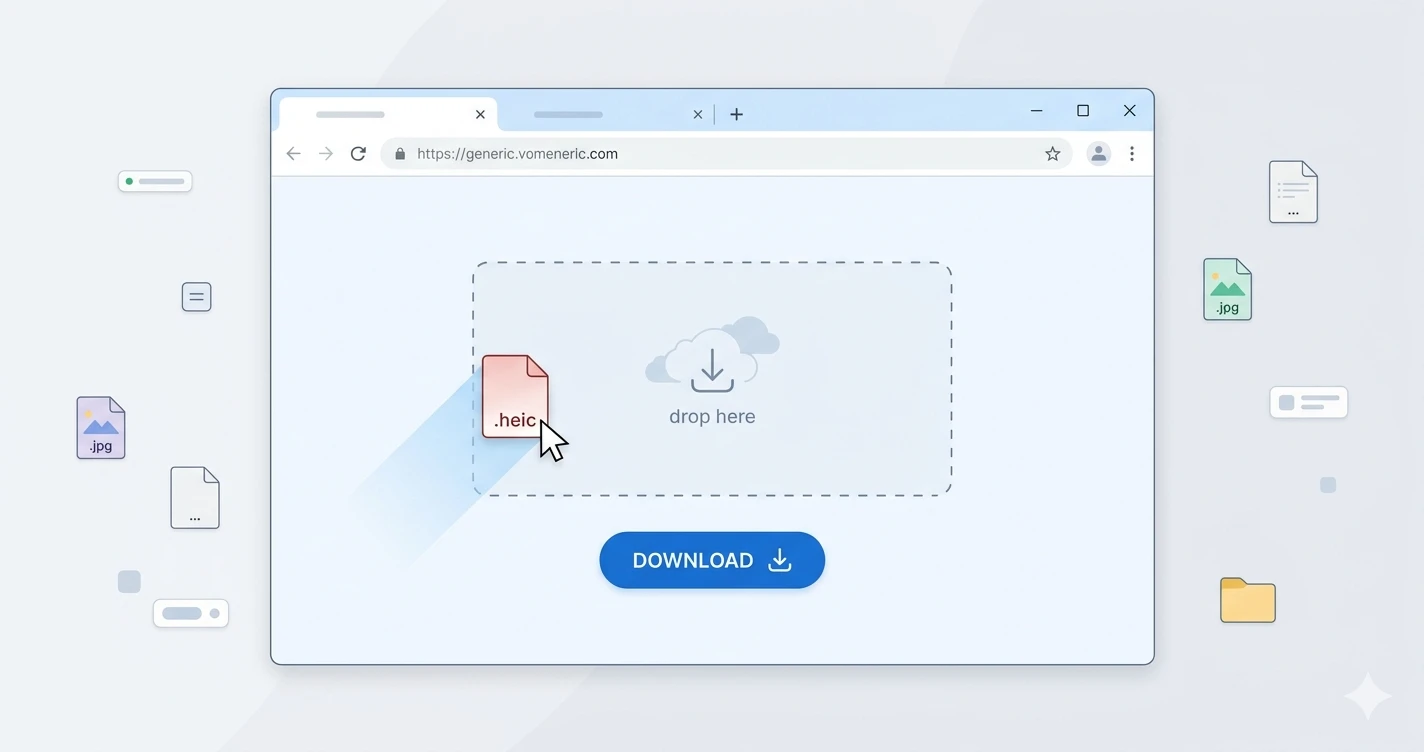
Open the converter — go to the HEIC to JPG converter in your browser. No account needed.
Upload the HEIC file — drag one or more .heic files onto the upload area, or click to select them from the folder where you copied them from your iPhone.
Download the JPG — conversion takes a few seconds. The downloaded file opens immediately in Windows Photos, Paint, or any other app without issues.
Tip: if you have multiple HEIC photos to convert, upload them all at once. Converting in batch saves a lot of time compared to doing them one by one.
How to open HEIC on Windows natively (alternative method)
If you regularly transfer photos from iPhone to Windows and prefer not to convert every time, installing the Microsoft HEVC codec is worth considering. Open the Microsoft Store, search for “HEVC Video Extensions”, and purchase it for around $0.99. After installation, Windows Photos and File Explorer will display HEIC thumbnails and open HEIC files directly.
Note that this only applies to viewing HEIC files on your own machine — if you need to share photos with others or upload them to a website, converting to JPG first is still the safer choice for compatibility.
How to stop iPhone from saving photos as HEIC
If you want your iPhone to save photos as JPG from the start — so you never have to convert — go to Settings → Camera → Formats and tap “Most Compatible”. Your camera will save photos as JPEG files that Windows opens without any issues.
The trade-off: JPEG photos are roughly twice the size of HEIC at the same quality, so you'll use more iPhone storage. If you have 128 GB or more, you probably won't notice the difference. On a 64 GB device, HEIC is genuinely worth keeping.
Frequently asked questions
Can Windows 10 open HEIC files?
Not without extra software. Windows 10 requires the HEVC Video Extensions codec from the Microsoft Store (paid) to open HEIC files natively. Alternatively, convert the files to JPG online for free — the resulting JPG opens on any version of Windows without any additional tools.
How do I convert HEIC to JPG on Windows without software?
Use a browser-based converter. Open CandyFile in Chrome or Edge, upload the HEIC file, and download the converted JPG. The entire process takes about 10–20 seconds and requires no installation.
Does converting HEIC to JPG reduce quality?
Only marginally. JPEG uses lossy compression, so some data is technically discarded — but at quality settings of 90% or above, the result is visually identical to the original. For sharing, emailing, or printing at normal sizes, there is no practical difference in quality.
Why does my iPhone save photos as HEIC?
iPhones running iOS 11 or later default to HEIC because it stores photos at roughly half the file size of JPEG with no visible quality difference. You can switch to JPEG in Settings → Camera → Formats → Most Compatible.
Convert your HEIC photos to JPG now
Free, online, no software needed. Works on Windows 10 and 11.
Convert HEIC to JPG